AI Alt Text for Shopify Product Images: A Practical Guide to Better SEO & Accessibility
AI writes descriptive alt text for your Shopify product images; you approve every line before it publishes. Full workflow, real examples, and setup tips.
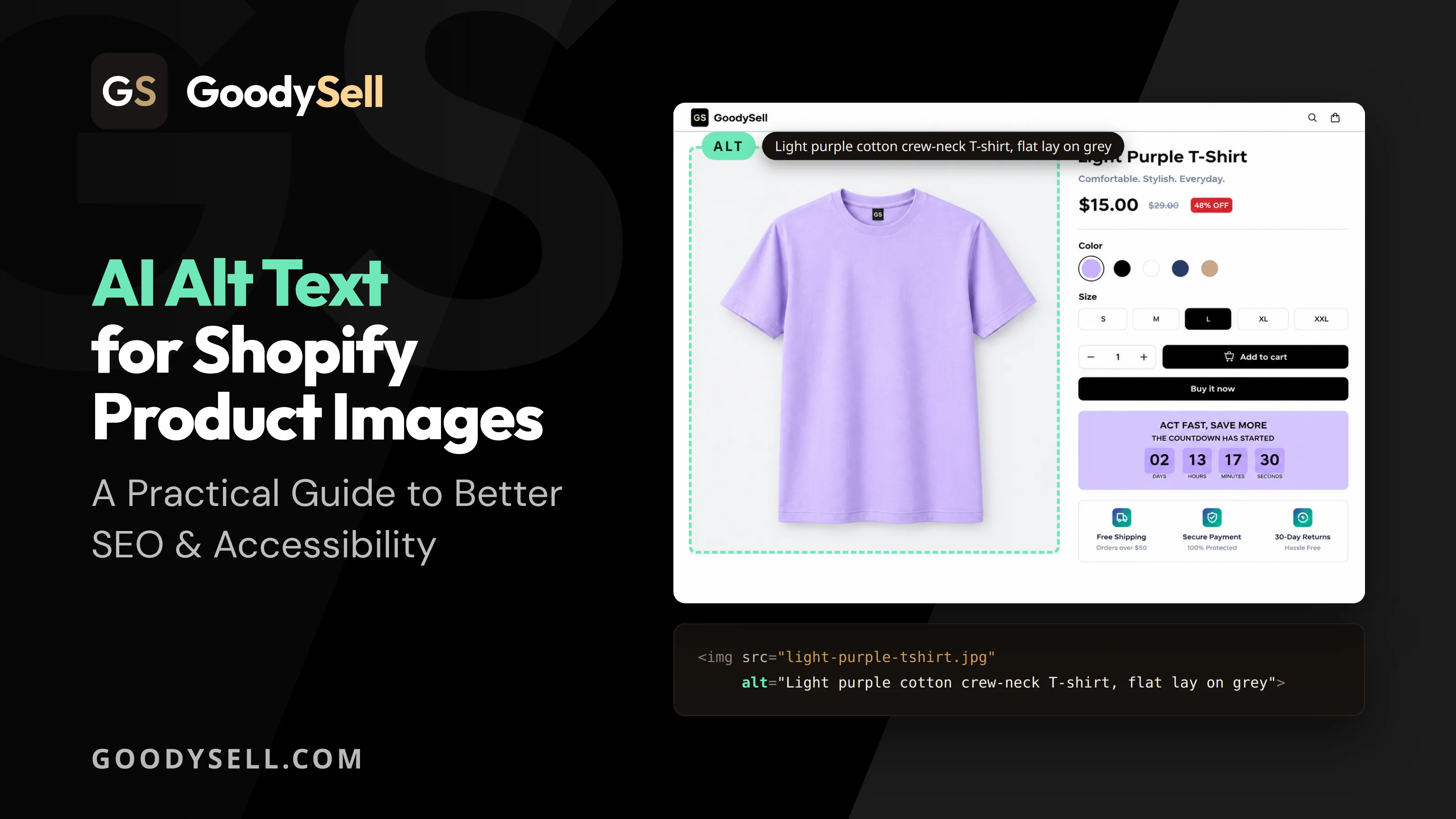
Most Shopify catalogs ship with hundreds of images and almost no alt text. That's a quiet loss on two fronts: Google Images can't tell what your products are, and shoppers using screen readers hear nothing but a filename.
GoodySell AI Alt Generator scans your products, writes descriptive alt text with AI, and shows you every result before it touches your store. This guide covers the whole workflow — install, scan, generate, review, apply — plus what the output actually looks like.
Install GoodySell AI Alt Generator
What Alt Text Is and Why It Matters for Shopify SEO
Alt text (alternative text) is a short written description attached to an image. It does three jobs at once:
Accessibility — screen readers read it aloud, so shoppers who are blind or low-vision know what each image shows.
Search visibility — search engines can't see pictures, so they rely on alt text to understand and rank them. It's how your products surface in Google Images.
A readable fallback — when an image fails to load, the alt text is what appears in its place.
What good alt text actually looks like
The gap between a skipped image and a described one is bigger than it sounds:
No alt text
(empty — a screen reader announces the filename, IMG_4471.jpg, or nothing at all)
Keyword stuffing
ski jacket pink ski jacket womens ski jacket winter jacket buy ski jacket
Good alt text
Ski Jacket in pink and burgundy blocks with black zippers, hooded collar, two side pockets, and a fitted silhouette on model
The third one describes what's in the frame — colours, construction, how it's shown — in a sentence a person could read aloud. It's also 124 characters, which is no accident: that's the budget the app writes toward for English.
Notice what it doesn't say. It doesn't call the fabric "soft polyester" or "premium wool", because you can't see a material in a photo. The app is instructed not to guess: it names a material only when the image itself shows it in text, on a care label or a printed claim. Invented details are the fastest way to make alt text worse than none.
Installing the App
Install GoodySell AI Alt Generator from the Shopify App Store and open it from your Shopify admin. It runs entirely inside the admin: nothing to add to your theme, no code to touch. You land on the Home screen with a short overview of the process and a Get Started button that takes you straight into the first step. Your store is on the free tier from the moment it opens, so you can run a first batch immediately and see the quality for yourself before choosing a plan.
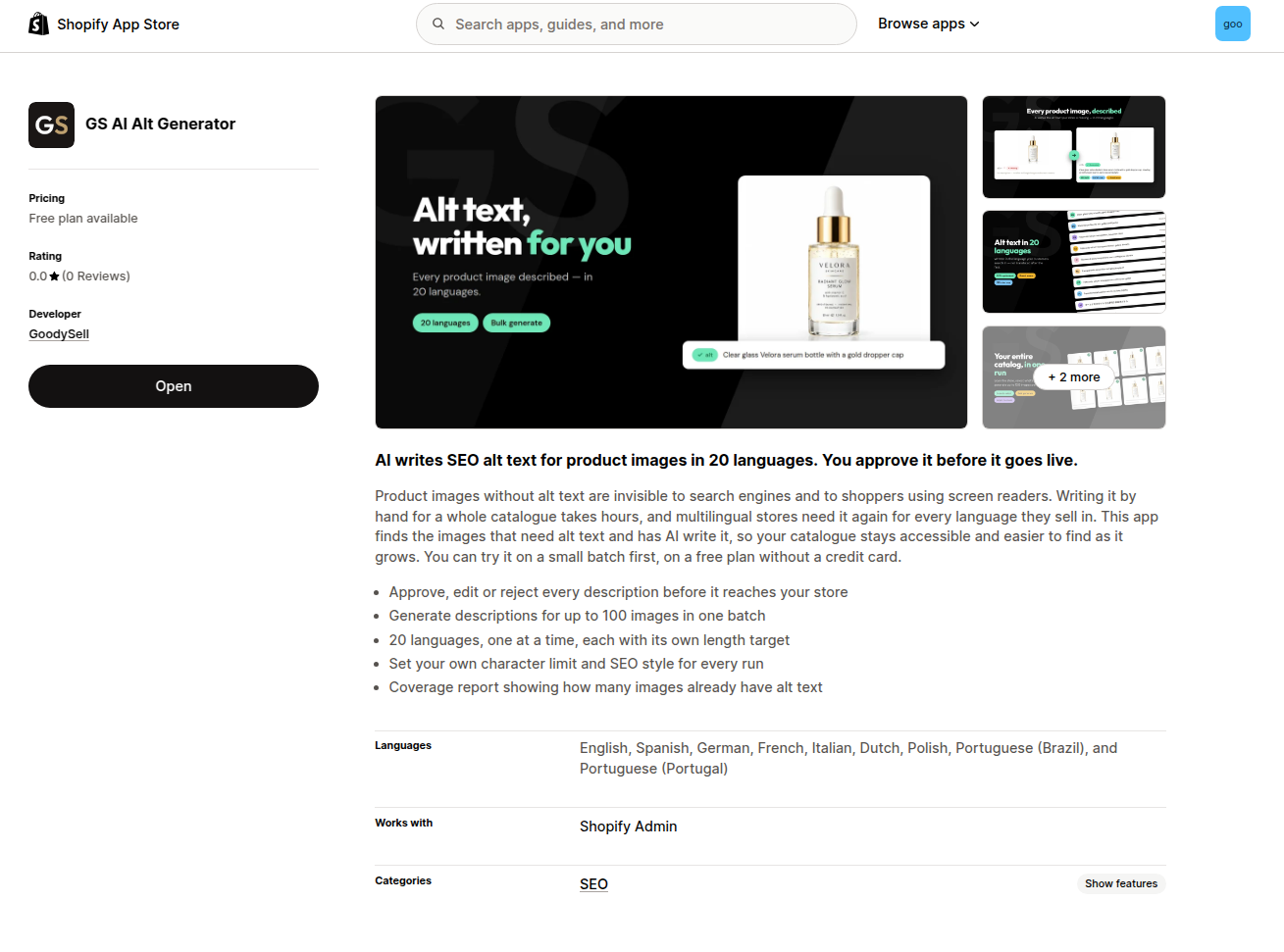
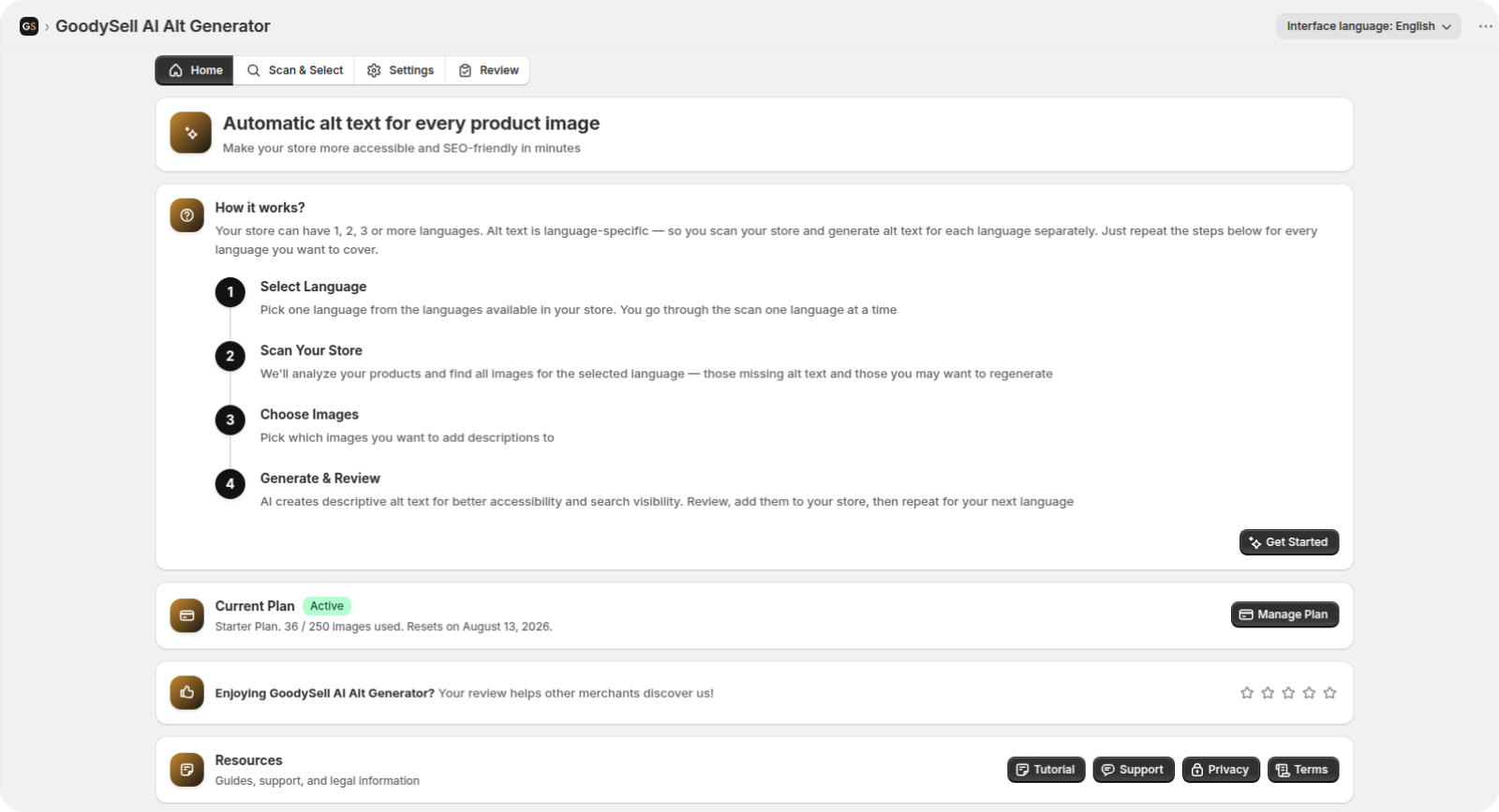
One thing worth knowing up front: alt text is language-specific. If your store sells in more than one language, you scan and generate for each language separately. The app is built around that — pick a language, work through it, repeat. It writes in 20 languages, from English, German and French to Japanese, Korean and Chinese.
(And yes — the screenshot captions in this guide are written as real alt text. It would have been strange to publish a guide about alt text without any.)
If you have a multilingual store, read our article about Shopify alt text in multiple languages.
Step 1: Scan Your Store
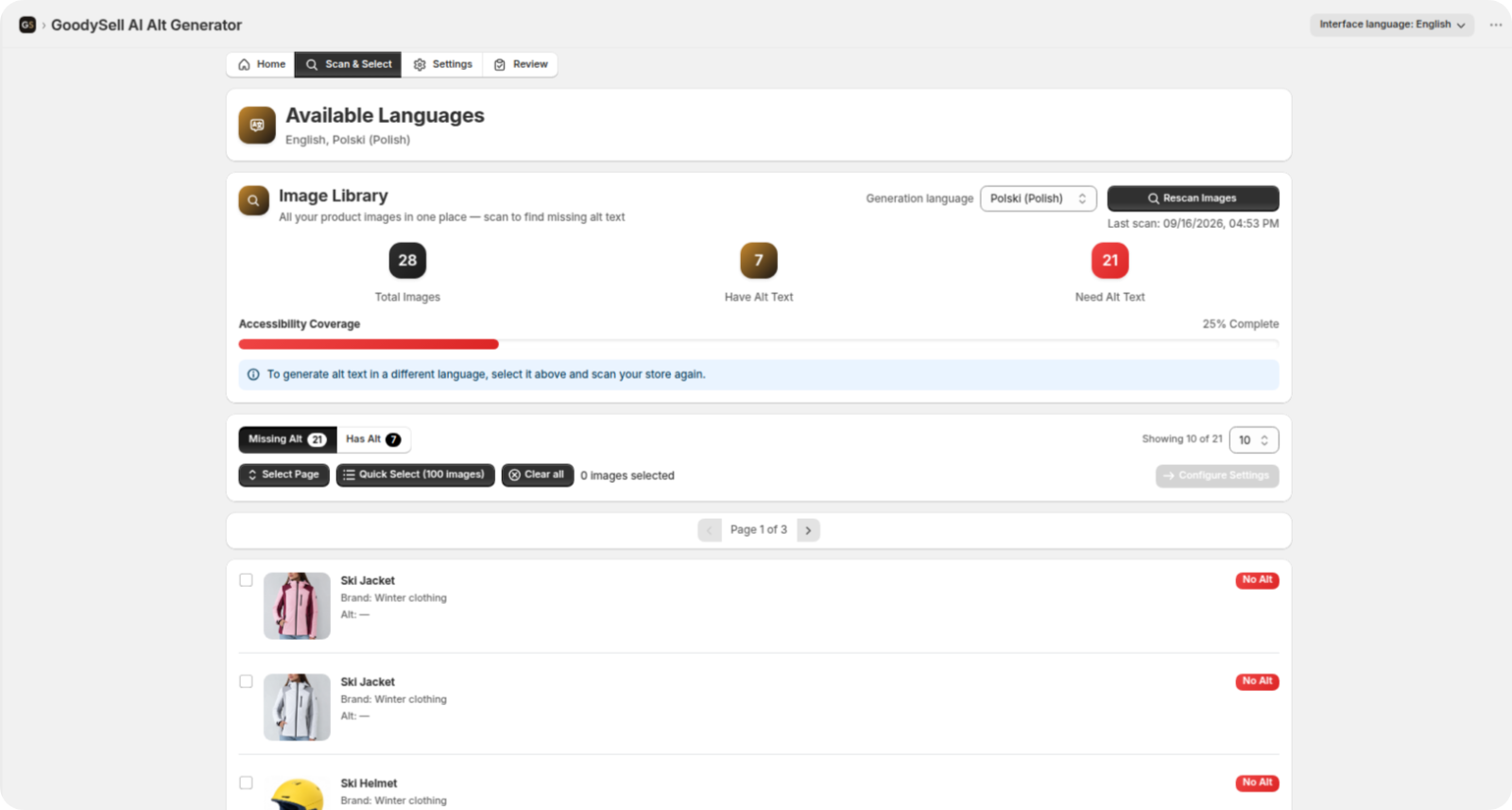
Open the Scan & Select tab, or click Get Started on Home. Pick your language in the Generation language dropdown — it lists the languages your store publishes that the app supports, and names any unsupported ones in a banner above — then click Scan Images.
The app fetches every product image and checks which ones already have alt text in that language. When it finishes you get a straight count: total images, how many are covered, how many still need text, and an Accessibility Coverage bar summing it up as a percentage.
Every number is per language. The same catalog can read 100% covered in English and 0% in German, and the scan you just ran only tells you about the language in the dropdown. Later on, Rescan Images refreshes the counts in one click, and the card remembers when you last ran it.
Step 2: Select Images
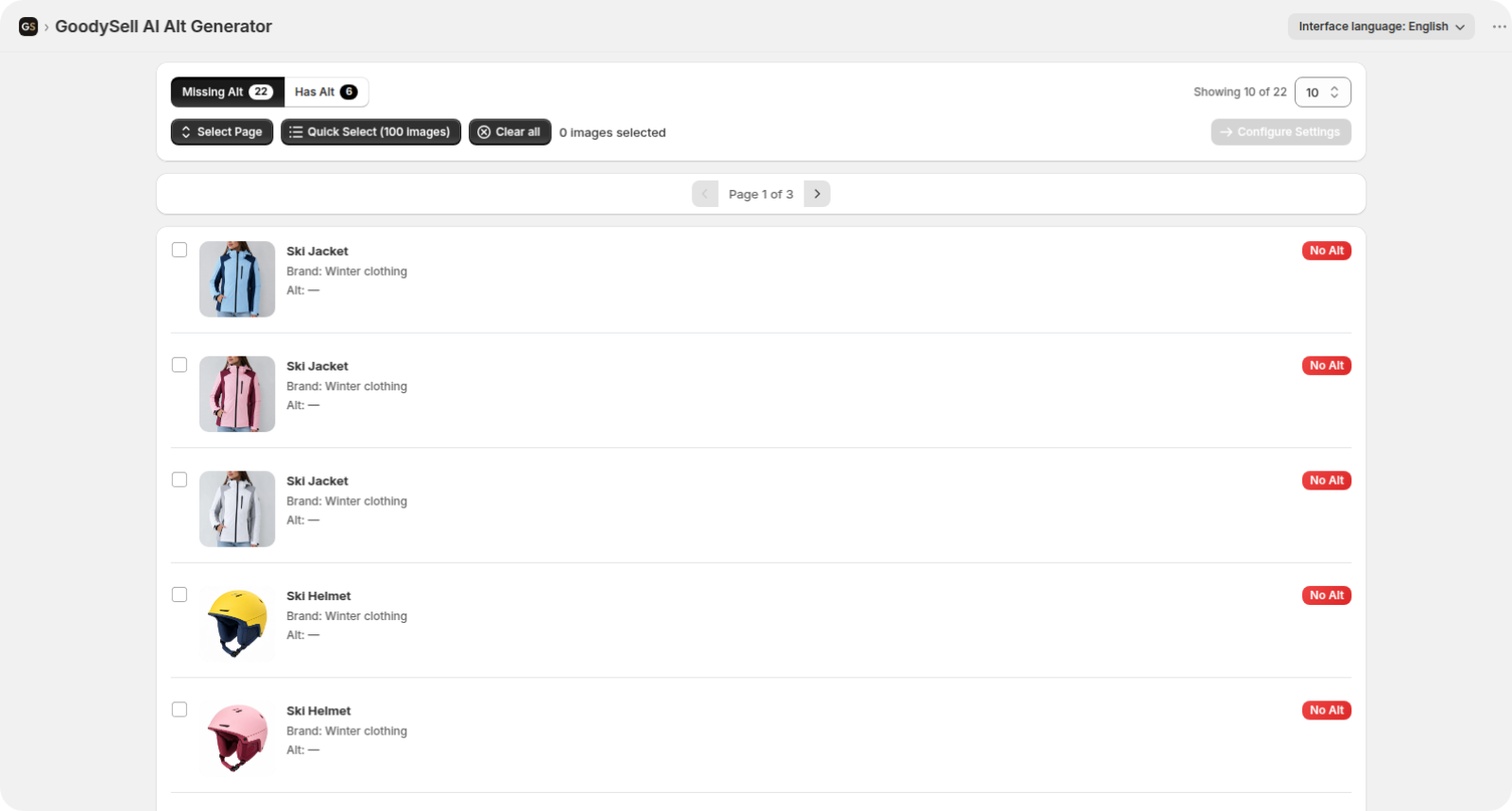
Below the overview are your images, with two filters:
Missing Alt — no alt text yet. Usually where you start.
Has Alt — already described, for when you want to regenerate something thin or outdated. Nothing existing is touched unless you pick it here deliberately.
Pick images one by one, use Select Page to take everything on the current page, or Quick Select to grab up to 100 matching images in a single click. You can clear the selection anytime and change how many images show per page — 10, 20 or 50.
One hundred is also the size of a batch, so that's the ceiling for a single run. Bigger catalogs just mean more rounds: select, generate, review, apply, repeat. When your selection looks right, click Configure Settings.
Step 3: Configure Length and Brand Name
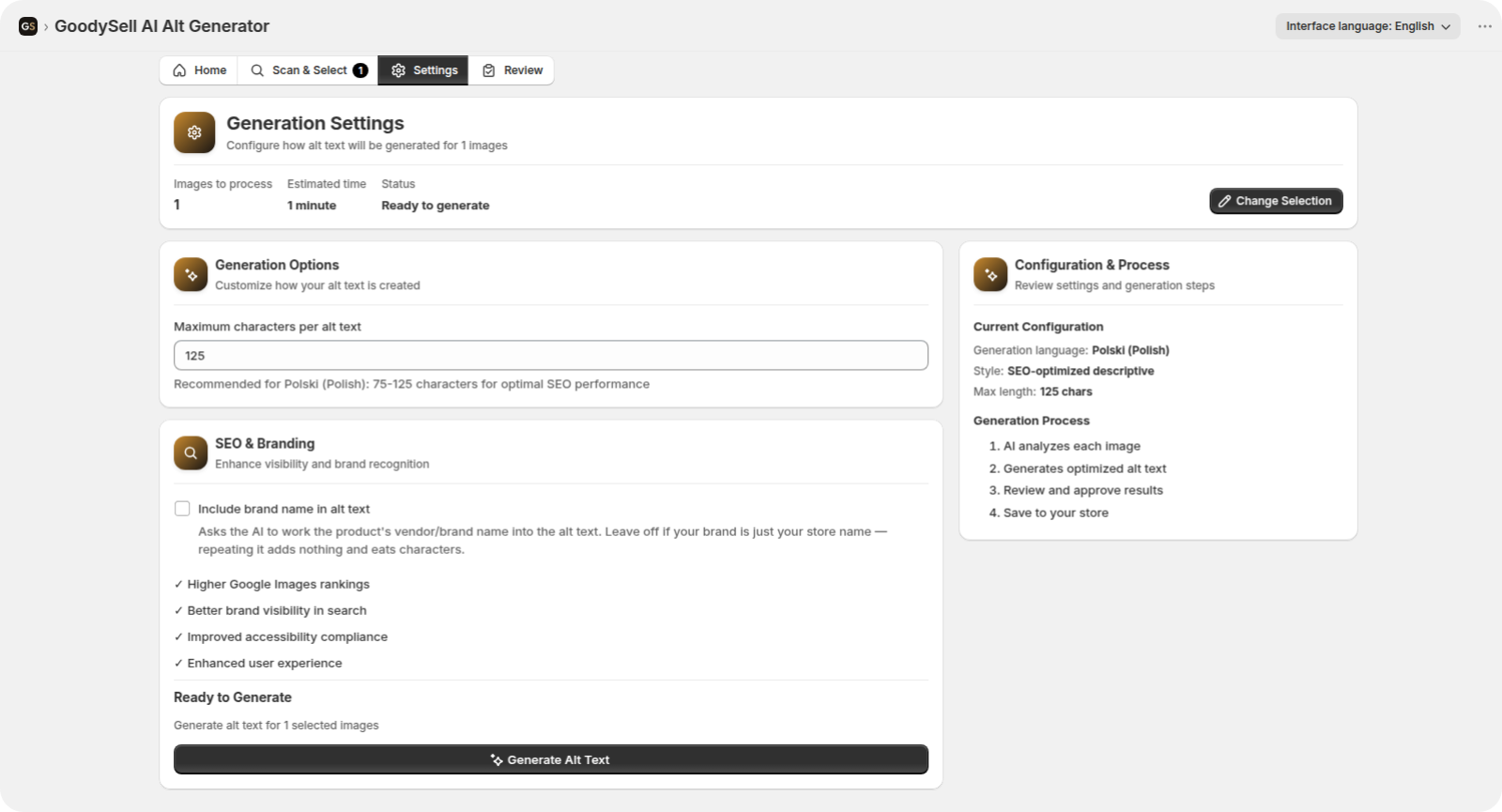
The Settings tab opens with your selection summarised — how many images, how long it should take — and two options that do most of the work.
Maximum characters per alt text. The allowed range adapts to your selected language, because character-dense scripts like Chinese, Japanese and Korean carry the same meaning in far fewer characters than Latin-script languages. Latin scripts run 75–125; Japanese and Chinese sit far lower. The app keeps your input inside the sensible range for that language automatically, and re-checks it whenever you switch languages. For English, output tends to land right at the top of the range, around 120–125 characters — long enough to be specific, short enough that a screen reader doesn't turn one image into a paragraph.
Include brand name in alt text. Off by default. Turn it on and the description is required to start with your vendor name — useful for consistency across a catalog and for brand visibility in image search. Leave it off and you get product-first descriptions like the ski jacket example above. It's worth leaving off when your vendor field is just your store name: repeating it on every image spends characters that could have described the product.
Whatever you choose, the product name itself is always in the output — that's a fixed rule, not an option. A summary panel confirms your language, style and length before you generate anything.
Step 4: Generate
With images selected and settings set, click Generate Alt Text. The AI reads each image — product, colours, shape, construction details — and writes a description in your chosen language, combining what's visible in the frame with your product information.
The work happens on our servers, not in your browser, so a flaky connection won't lose it. A progress screen shows the batch moving: images completed out of the total, a percentage, and — if other stores are generating at that moment — your place in the queue and the wait before yours starts. The app asks you to keep the tab open, but if it closes anyway, reloading brings you back to the results; they're saved as they're produced.
One batch runs at a time per store. Start a second while one is still going and the app simply shows you the one already in flight rather than queueing a duplicate.
What the Output Looks Like
Three real results from a ski-wear catalog, generated in English with brand name off:
Ski Jacket

Ski Jacket in pink and burgundy blocks with black zippers, hooded collar, two side pockets, and a fitted silhouette on model
Women's Ski Gloves

Women's Ski Gloves: white shell, black palm, mitten shape, adjustable strap, elastic cuffs, subtle snowflake logo emblem
Women's Ski Suit

Women's Ski Suit in pink, white, and black with colorblock jacket, zipper, chest pocket, hood, and pink pants with panels
Three things to notice. The colour breakdowns are specific — "pink and burgundy blocks", "white shell, black palm" — not just "pink jacket". Construction details a shopper would care about make it in: hooded collar, adjustable strap, chest pocket. And the jacket description ends with on model, because that's genuinely part of what the image shows. None of them read like a keyword list. All three land between 120 and 124 characters, inside the 125 limit they were generated under.
Step 5: Review and Edit
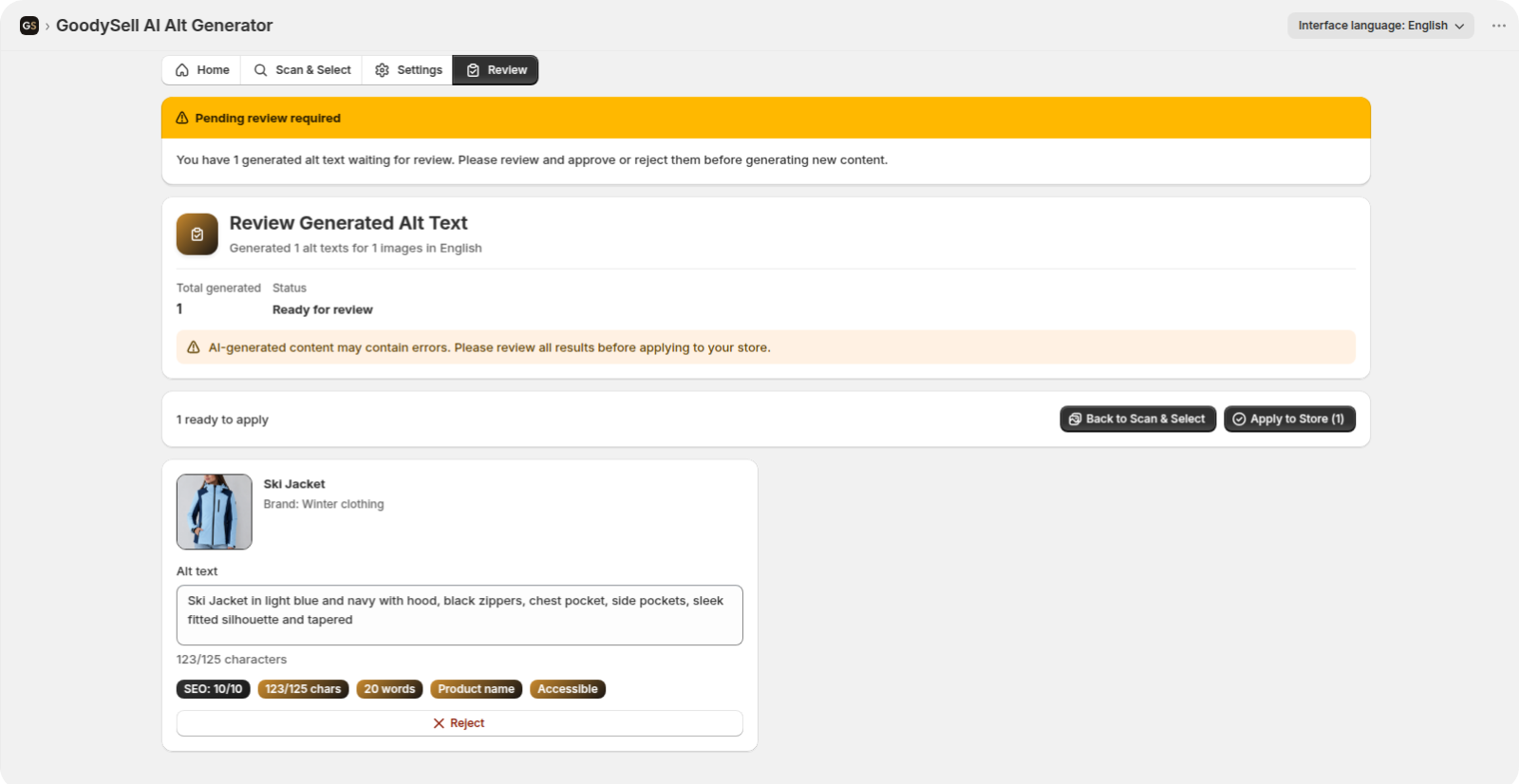
Nothing reaches your store until you apply it. The Review tab shows every generated description next to its image, along with its character count, a word count and an SEO score, so you can see at a glance which ones are worth a second look. Here you can:
Edit any description inline to adjust wording — the character counter updates as you type.
Reject the ones you don't want. Rejections are confirmed in a separate step before anything is discarded, and a rejected result is deleted rather than applied, leaving that image exactly as it was.
Leave the rest alone. There's no per-image approve button: everything you haven't rejected is what gets applied, and the button tells you how many that is.
This step is the point of the whole flow. The AI does the volume work; the published wording is still yours.
Step 6: Apply to Your Store
Click Apply to Store — the count on the button is how many descriptions are about to be saved. For your store's primary language it updates the image's alt text directly, where you'll find it in the product's image details in Shopify admin. For additional languages it saves the description as a translation, so each language keeps its own correct text without overwriting the others.
You're returned to Scan & Select with the coverage figures refreshed. If a save fails for any individual image, the app tells you how many applied and how many didn't, and keeps the rest on the Review tab so you can retry them rather than regenerating from scratch.
Then repeat the cycle — scan, generate, review, apply — for the next language.
Tips for Better Results
Finish one language before starting the next. It keeps coverage numbers meaningful and stops you losing track of what's done.
Use the Has Alt filter to upgrade old text. Descriptions inherited from another tool are often one or two generic words. Regenerating them is usually a bigger win than covering the last few missing images.
Tidy your product titles and translations first. The AI uses them as context, so "Women's Ski Gloves" produces better output than "SKU-GL-04 WHT".
Skim the Review tab anyway. The output is specific, but only you know that the "burgundy" panel is officially called Merlot in your catalog.
Keeping Coverage Up
The Home screen shows your current plan, how much of your monthly allowance you've used and the date it resets. As you add products, scan again and generate for the new images — a two-minute habit that keeps a growing catalog fully described.
FAQ
Will it overwrite alt text I've already written?
Only if you choose to. Images with existing text sit behind the Has Alt filter and aren't included when you work from Missing Alt. Anything regenerated still passes through Review before it's applied.
Does it work on multi-language stores?
Yes, one language at a time. Your primary language updates the image's alt text field; additional languages are saved as translations, so nothing overwrites anything else.
Do I have to review every result?
Everything you don't reject gets applied, so the Review tab is the gate. In practice you'll skim, edit a handful, and apply the rest in one click.
How long should Shopify alt text be?
Roughly 100–125 characters is the sweet spot for English: descriptive enough for search, short enough that screen readers stay usable. The app's per-language limits are set around that, and they drop for Chinese, Japanese and Korean, where the same meaning fits in far fewer characters.
Does it touch my theme or require code?
No. It runs inside the Shopify admin and writes to your product image data. Nothing is added to your theme files.
What happens if I run out of monthly allowance?
The app won't start a batch it can't finish: if you select more images than you have left, it tells you how many remain before anything is generated. Once the allowance is used up, generating waits for either an upgrade or the start of your next billing month.
Get Your Catalog Described
Alt text is a small SEO and accessibility win that most stores never collect, and the reason is always the same: nobody wants to write two hundred product descriptions by hand. A few clicks per language is a different proposition.
Install GoodySell AI Alt Generator from the Shopify App Store, run a scan, and you'll know your exact coverage gap in under a minute.