Multi-Language Alt Text for Shopify Product Images
Your storefront is translated, but your product image alt text probably isn't. This guide covers how Shopify stores alt text for each language, why Translate & Adapt doesn't show it, and how to generate, review and verify alt text for every market with AI.
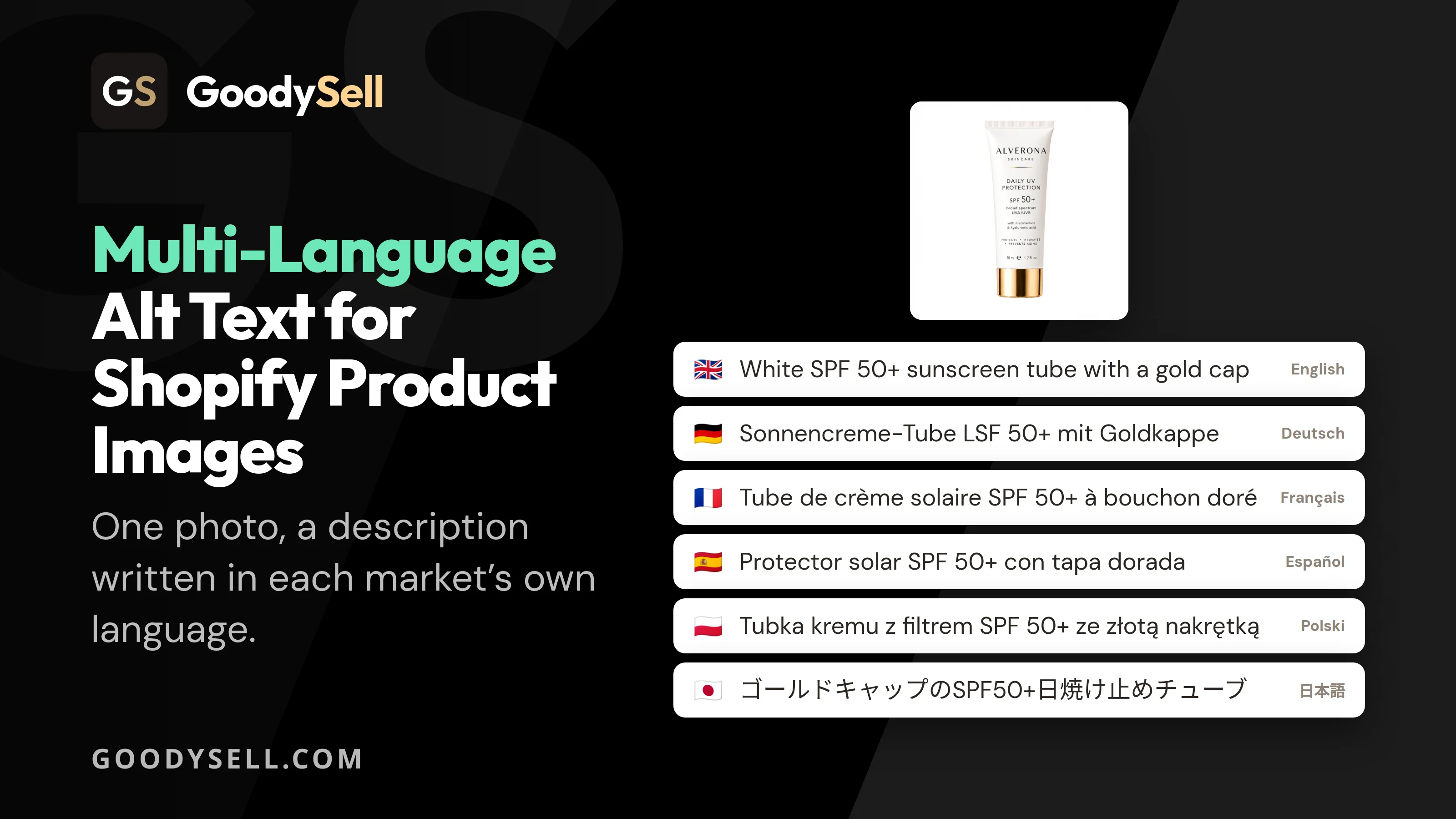
How to Add Alt Text to Product Images When Your Shopify Store Sells in Several Languages
You translated your product titles. You translated your descriptions, your navigation, your checkout. Then you opened a German product page, right-clicked an image, and found an alt attribute in English — or nothing at all.
That's the normal state of a multi-language Shopify store, and it's worth fixing. Here's why, and how to do it without writing a description for every image in every language by hand.
Why alt text has to be translated too
Google Images is a per-market search engine. Your German pages compete in German results, and alt text is one of the few signals telling Google what a photo shows. English alt text on a German page is a weaker signal in that market — and Image search is the one place where a product photo is the result.
Screen readers don't translate. A shopper in Japan using a screen reader hears whatever string is in the alt attribute, read out by a Japanese voice. English text in that slot is at best noise.
The same sentence isn't the same length in every language. German runs long, Japanese and Chinese pack the same meaning into roughly half the characters. A single global character limit copied across all your markets produces text that's padded in one language and truncated in another.
And the obvious tool doesn't cover it. Shopify's Translate & Adapt handles theme content and metafield media, but not product gallery alt text. So even a carefully translated store usually has this one field untranslated, invisible in the admin UI, quietly serving English to every market.
How Shopify actually stores this
Worth knowing before you start, because it explains where your text ends up:
For your primary language, alt text lives on the image file itself — the Alt text field you see in the product's Media section.
For every other language, it's stored as a translation of that image's alt text. Shopify made this field translatable in API version 2025-10; it sits alongside the primary text rather than replacing it.
So one image can hold an English alt text, a German one and a Japanese one at the same time, and each storefront serves the right one. What you can't do is see the translated versions in the admin — which is why verification gets its own step below.
Doing it with GoodySell AI Alt Generator
The app is built around this exact workflow: one language at a time, with separate statistics, separate settings and a separate review for each.
Step 1: See which of your languages are supported
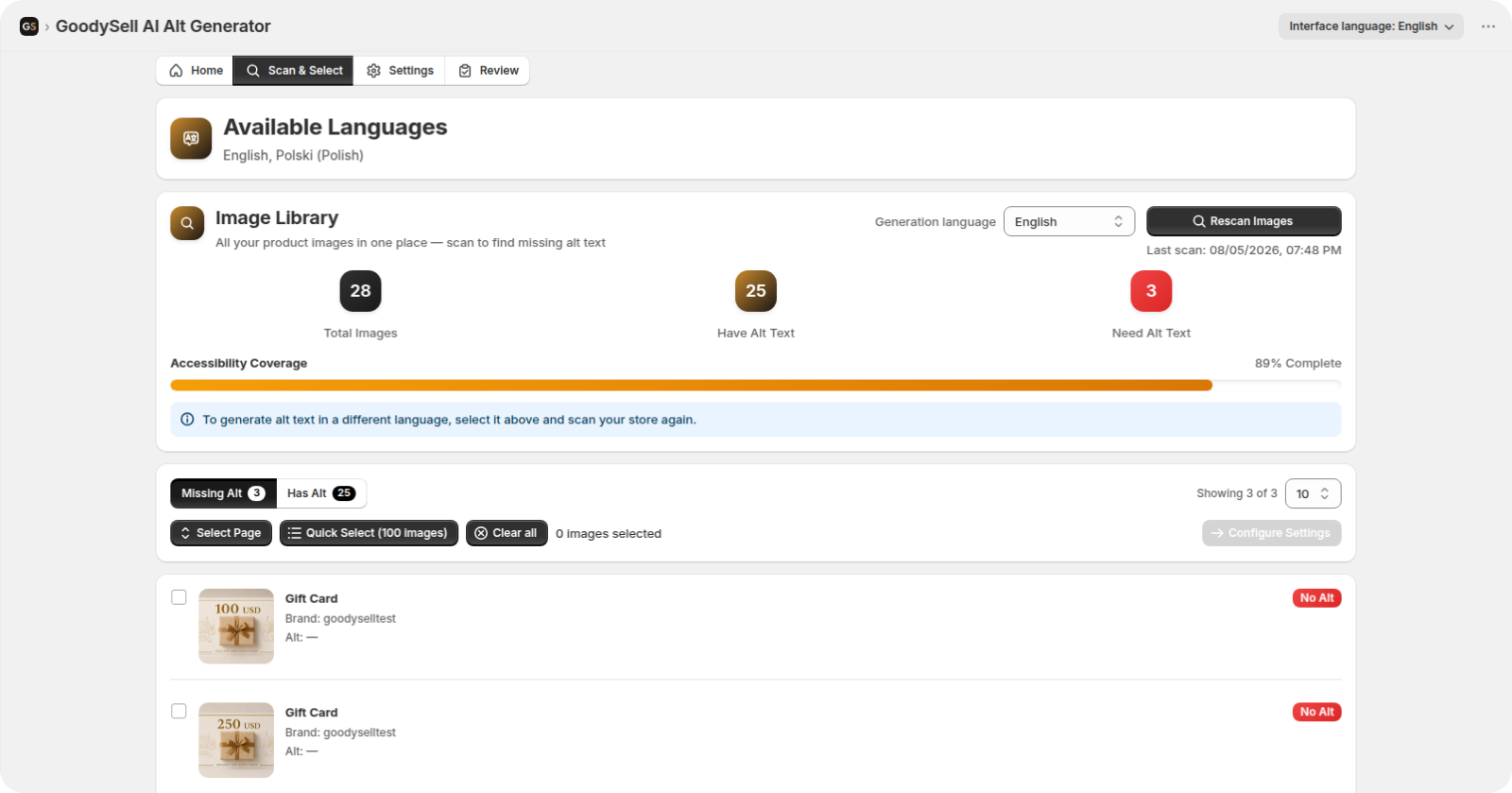
Open the Scan & Select tab. The Available Languages card at the top reads your store's published locales and tells you which ones the app can write: it generates in 20 languages, including English, German, French, Spanish, Italian, Dutch, Portuguese (BR and PT), Polish, Czech, Swedish, Danish, Norwegian, Finnish, Turkish, Malay, Japanese, Korean and Chinese (Simplified and Traditional). Anything your store publishes that isn't on that list is named in a warning banner, so you know up front where the app can help and where it can't.
Step 2: Pick one language and scan
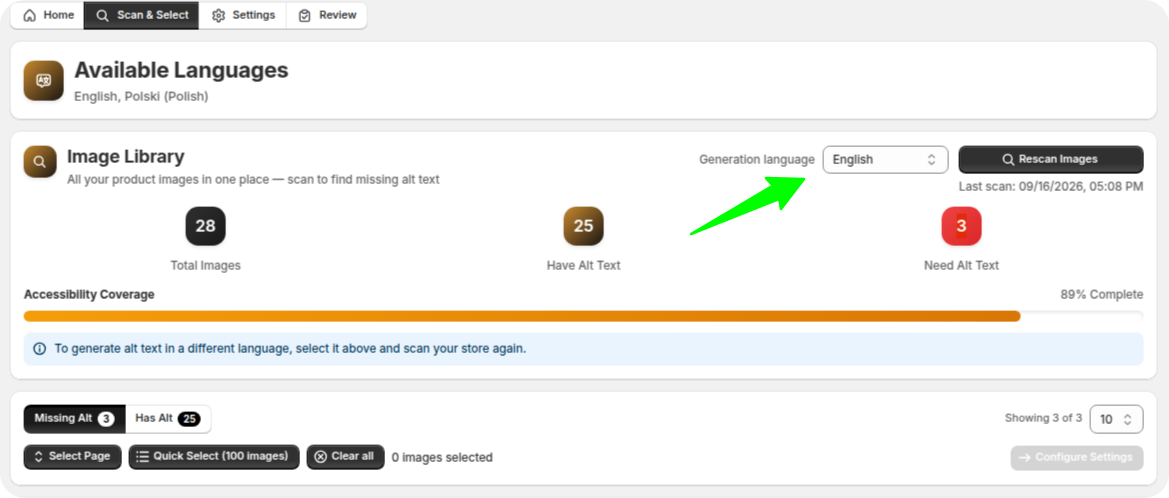
Choose a language in the Generation language dropdown — it offers only the locales your store actually publishes — and click Scan Images.
The scan reports four numbers, all of them for that language alone: total images, how many already have alt text, how many need it, and an Accessibility Coverage percentage. Run it for your primary language and you might see 90%. Switch to German, scan again, and you'll often see 0%. That gap, language by language, is the real size of the job — and it's the number to watch as you work through your markets.
Step 3: Select the images for this language
Two filters organise the gallery: Missing Alt (nothing yet in this language) and Has Alt (already described in this language — useful when a market was covered by machine translation and reads badly).
Select images individually, take the whole page with Select Page, or grab up to 100 at once with Quick Select. One hundred is the batch size, so a large catalog becomes a series of rounds rather than one long wait.
A practical note: the same image appears in every language's gallery. Covering it in English doesn't cover it in German, and the app won't pretend otherwise — each language keeps its own state.
Step 4: Set the length for this language
This is the step where multi-language stores usually get burned, and where the app does something a global setting can't.
The Maximum characters per alt text field adapts to the language you picked:
Language | Allowed range |
|---|---|
Latin-script languages (English, German, French, Polish…) | 75–125 |
Chinese (Simplified and Traditional) | 35–65 |
Japanese | 40–65 |
Korean | 45–70 |
Dense scripts get shorter ranges because their characters carry roughly twice the content. Switch from English to Japanese and the field re-checks itself automatically, so you can't accidentally commission a 125-character Japanese description that reads like a paragraph.
The second option, Include brand name in alt text, is off by default. Turned on, the description is required to start with your vendor name — worth considering in markets where your brand isn't yet recognised, and worth skipping when your vendor field is just your store name.
Step 5: Generate
Click Generate Alt Text. The AI looks at the photo and the product's title in that language, then writes the description entirely in the target language — colours, shapes and features included, with only product and brand names keeping their original spelling. It's instructed not to guess materials it can't see, so you don't get "Baumwolle" invented for a polyester jacket.
Generation runs on our servers, one batch per store at a time, with a progress screen and a queue position if other stores are generating at that moment. Keep the tab open if you can; if you lose the connection, the results are saved and waiting when you reload.
Step 6: Review in that language
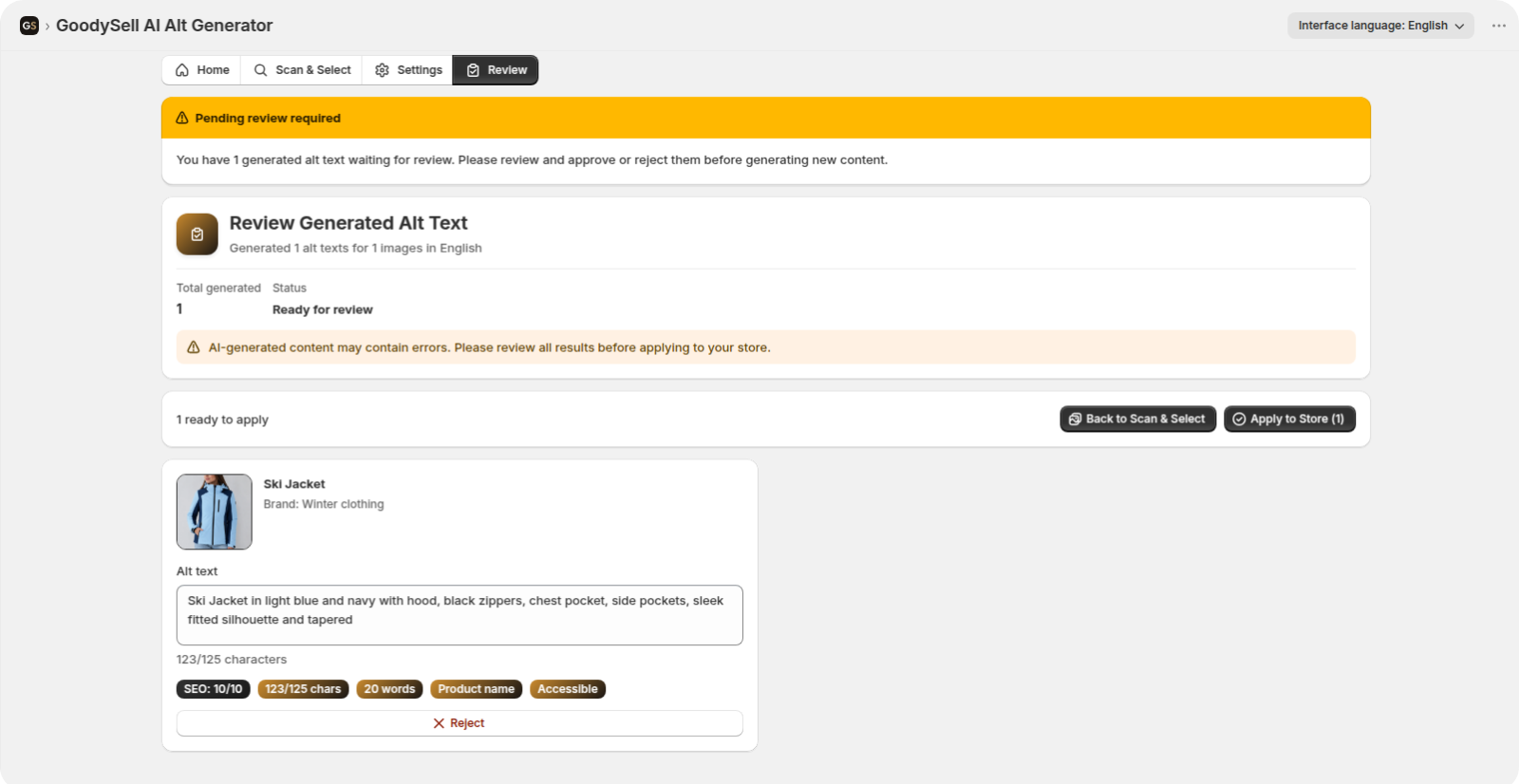
Every result lands on the Review tab before anything touches your store: the image, the generated text, its character count against the limit you set, a word count and an SEO score. Edit anything that reads awkwardly, reject anything that doesn't work — rejections are confirmed separately and discarded rather than applied — and everything you leave alone is what gets saved.
If you have a native speaker on the team, this is the two-minute job to hand them per market.
Step 7: Apply — and know where it went
Apply to Store saves the batch. For your primary language it writes to the image's Alt text field. For every other language it registers a Shopify translation of that image's alt text, keyed to that locale, leaving the other languages untouched.
You're returned to Scan & Select with the coverage figures for that language refreshed — the fastest confirmation that the batch landed.
Step 8: Verify the translated text
Because Translate & Adapt doesn't surface product image alt text, translated descriptions won't appear where you'd instinctively look. Three places do show them:
In the app. Pick the language, switch to the Has Alt filter: every card prints the text stored for that language.
On your storefront in that locale. Open a product page on the localized domain or language path and inspect the image — the
altattribute carries the translated string. This is exactly what Google and screen readers receive.Via the Admin API, if you're technical:
translatableResource(resourceId: "gid://shopify/MediaImage/…") { translations(locale: "de") { key value } }. A row withkey: "alt"is the authoritative answer.
Step 9: Repeat per language
Switch the dropdown, scan, generate, review, apply. Same loop, new language.
A sensible order of work
Primary language first. It's the one most of your traffic sees, and it gives you a quality baseline before you commit to markets you can't read.
Then markets by revenue, not by alphabet. Coverage in a market that sells is worth more than coverage in one you're testing.
Bestsellers before the long tail. If a market's catalog is too big for one pass, sort your effort the way your revenue does.
New products monthly. They arrive with empty alt text in every language at once. A rescan per market takes a minute.
Watch the allowance. Every language counts separately against your monthly image quota, because every language is a genuinely separate generation. Three markets means three times the images — plan the month accordingly.
FAQ
Does generating German alt text overwrite my English one?
No. Non-primary languages are stored as separate translations of the same image. Each locale keeps its own text.
My store has a language the app doesn't support. What happens?
It's named in the warning banner on the Scan & Select tab and simply isn't offered in the dropdown. The other languages work as normal.
Can I do all my languages in one run?
No, and that's deliberate: each language has its own scan, its own length range and its own review. Running them separately is what keeps a Japanese description from being an English one with a different character count.
Why doesn't Translate & Adapt show this text?
That app covers theme content and metafield media; product image alt text isn't in its list. The field became translatable through the API in version 2025-10, which is where this app writes.
Does the interface language change the output language?
No. The Interface language menu in the title bar changes the buttons and labels you see. The language of your alt text is the Generation language you pick before scanning.
Get every market described
Translating a storefront and leaving the image alt text in English is a gap that costs you exactly where it's hardest to notice: Google Images in markets you don't search in, and shoppers whose experience you never see.
Install GoodySell AI Alt Generator, scan one of your secondary languages, and the coverage number will tell you in under a minute how big that gap actually is.