How to Bulk Edit Image Alt Text in Shopify
Shopify keeps alt text on every product image but gives you no way to edit it in bulk: you open each product, then each photo. This guide uses GoodySell AI Alt Generator to scan the catalog, select up to 100 images, generate alt text, check it on one screen and apply it to the store in one click.
How to Bulk Edit Image Alt Text in Shopify (Without Opening Every Product)
GoodySell AI Alt Generator lets you write and edit alt text for up to 100 Shopify product images at a time, from one screen, instead of opening every product and every photo. This guide walks through the whole process.
Why bulk editing alt text in Shopify is so slow
Shopify keeps alt text on each product image, and that’s the right place for it. The trouble is how you reach it. In the Shopify admin you open a product, click a photo to open Preview media, click Add alt text, type, click Save alt text, close the preview, and move on to the next photo. The media editor may suggest a description for a photo that has none, but that’s still one photo, one product at a time.
There is no bulk alt text editor in Shopify. No list of every image with a text field next to it, no way to fill fifty at once. The one built-in shortcut is the product CSV, which has an Image Alt Text column, and it comes with its own risks.
So in this guide we do the whole job with the app: it finds the images, writes the alt text, lets you correct it on one screen, and saves it back to Shopify in one go.
Step 1: Scan your Shopify product images
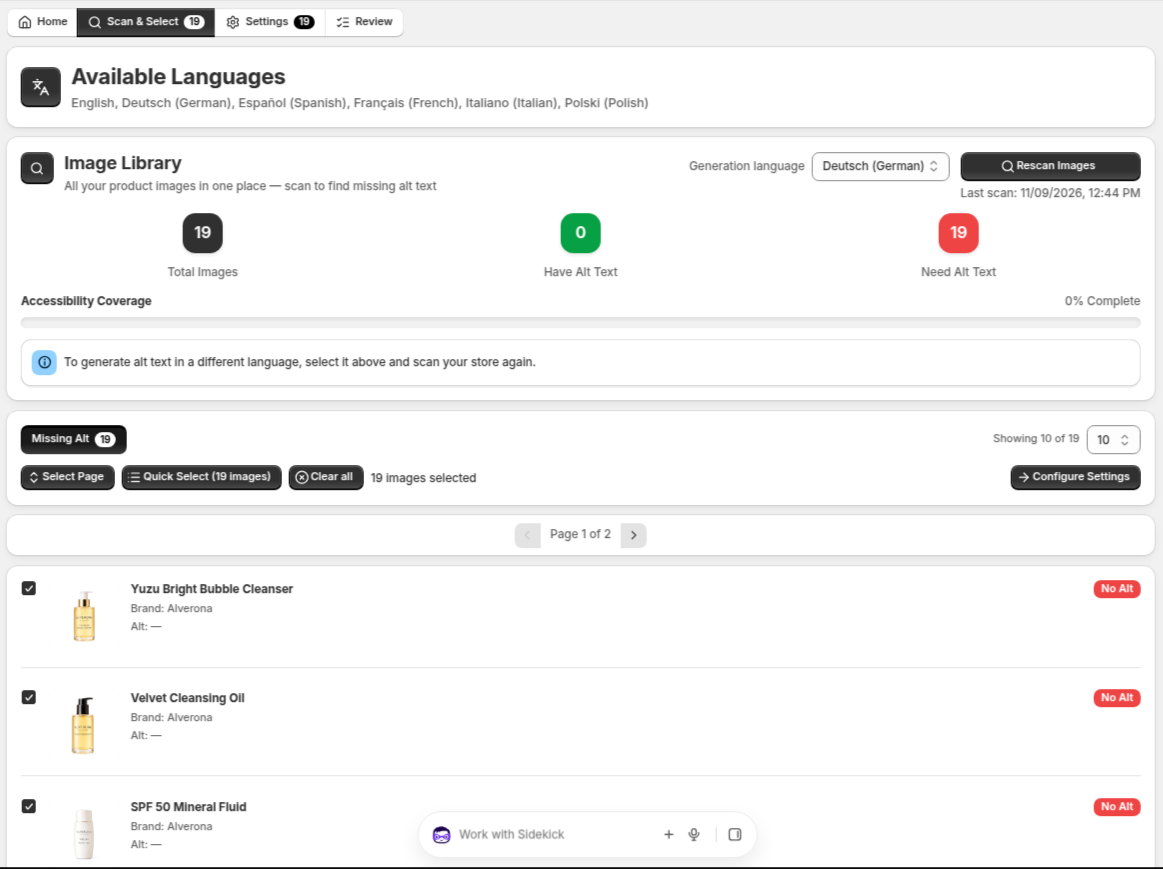
Install GoodySell AI Alt Generator from the Shopify App Store and open it from Apps in your admin. Go to the Scan & Select tab, choose the language you want alt text in from Generation language, and press Scan Images.
The app reads every product in your store, 250 at a time, and lists their images. A large catalog takes a few minutes. When it’s done you see “Store scan completed successfully”, three figures and a coverage bar.
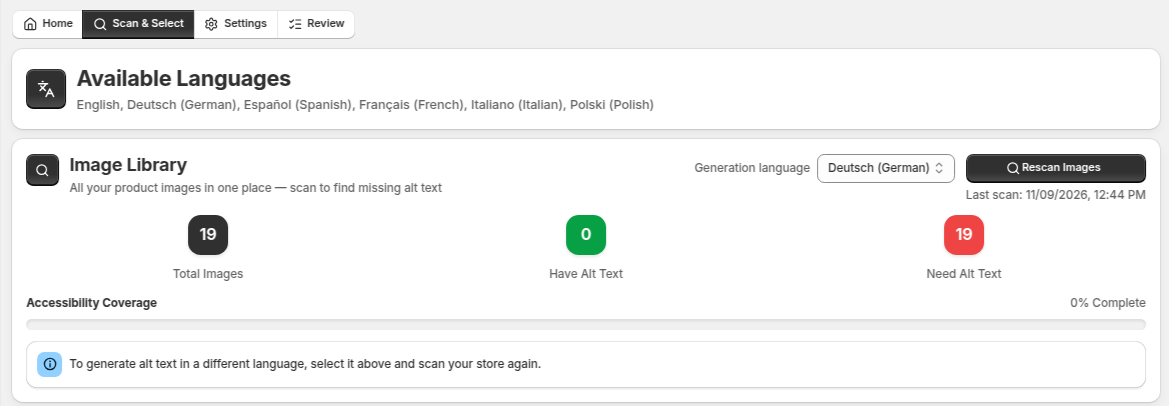
Total Images: every product image found, including draft and archived products.
Have Alt Text and Need Alt Text: the split you’re about to fix.
Accessibility Coverage: the share that already has alt text. The bar is red below 50%, turns amber from 50% and green at 100%.
The figures count alt text in the language you scanned for. Our example store sells in six languages and generates in Deutsch (German); to work on another language, pick it in the selector and scan again, as the note under the bar says.
The scan covers product images only: product photos, including the ones your variants use. Collection banners, blog images and theme images aren’t part of it.
Step 2: Select up to 100 images at once
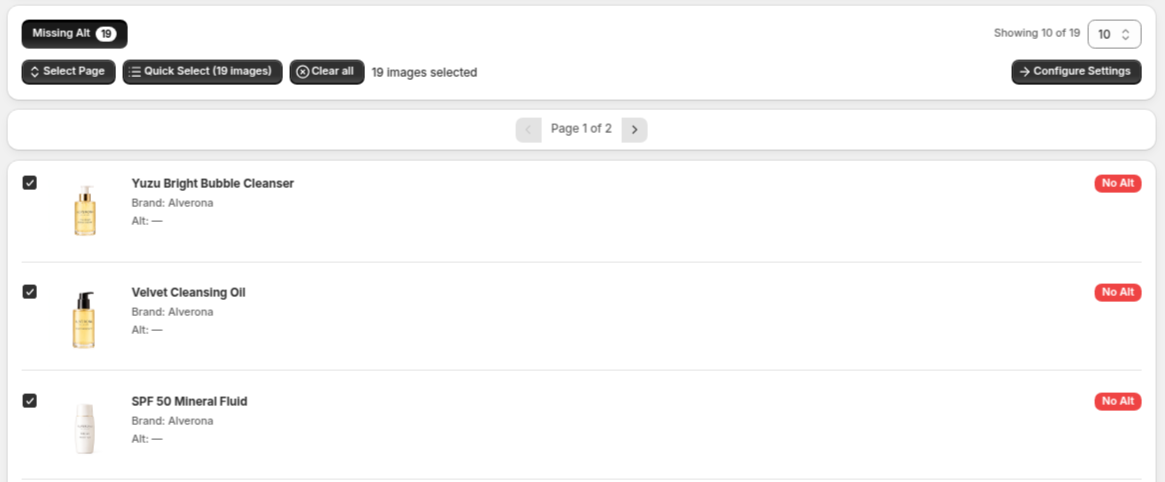
Under the figures is the image list, with two filter tabs: Missing Alt and Has Alt. A tab only shows up when it has images in it, so in our example, where nothing has alt text yet, there’s just Missing Alt. After a scan the app opens Missing Alt, which is what you want for a first pass.
Each row shows the thumbnail, the product title, a Brand: line (the product’s Vendor in Shopify) and an Alt: line with the current alt text, or a dash when there is none.
There are three ways to pick images:
Quick Select takes up to 100 images from the active tab in one go, across every page. Its label tells you how many: Quick Select (19 images) here, spread over two pages of 10.
Select Page takes the images on the page you’re looking at (10, 20 or 50, depending on the page size).
The checkboxes add images one by one, and your picks are kept as you move between pages and both tabs.
Both buttons replace what you had selected rather than adding to it, and Clear all empties the selection. A batch is at most 100 images: once you reach 100, the other checkboxes grey out. When the selection is right, press Configure Settings.
Want to rewrite weak alt text rather than fill in missing alt text? Pick the images from the Has Alt tab instead. The new text replaces the old one when you apply it.
Step 3: Set the length and the brand option
The Settings tab shows how many images you picked and a rough time estimate, at about 8 seconds per image: 3 minutes for our 19 images. On the right, Configuration & Process sums up the language, style and length the batch will use.
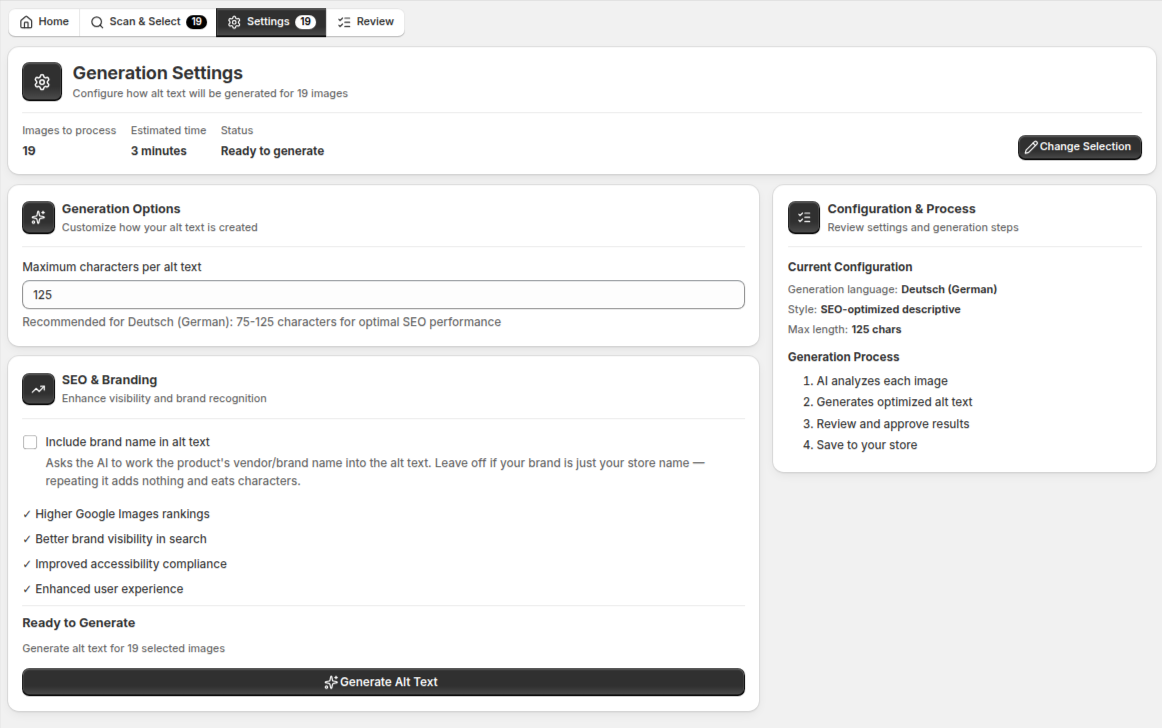
There are only two things to decide:
Maximum characters per alt text. The default is 125, which is the length Shopify itself recommends. The AI aims just under your number, so 125 gives texts of about 120 to 125 characters. The hint under the field gives the range for your language: 75 to 125 for German, and the same for English and other European languages.
Include brand name in alt text. When it’s ticked, the AI works the product’s Vendor into each text. Leave it off when the vendor is just your store name, as in this example: repeating “Alverona” in every text adds nothing.
The brand checkbox goes back to unticked every time you reload the app, so tick it right before you generate if you want it. Picked the wrong images? Change Selection takes you back to Scan & Select.
Step 4: Generate alt text for the whole batch
Press Generate Alt Text. The form turns into a progress screen: which product it’s on, how many are done, and the estimated time.
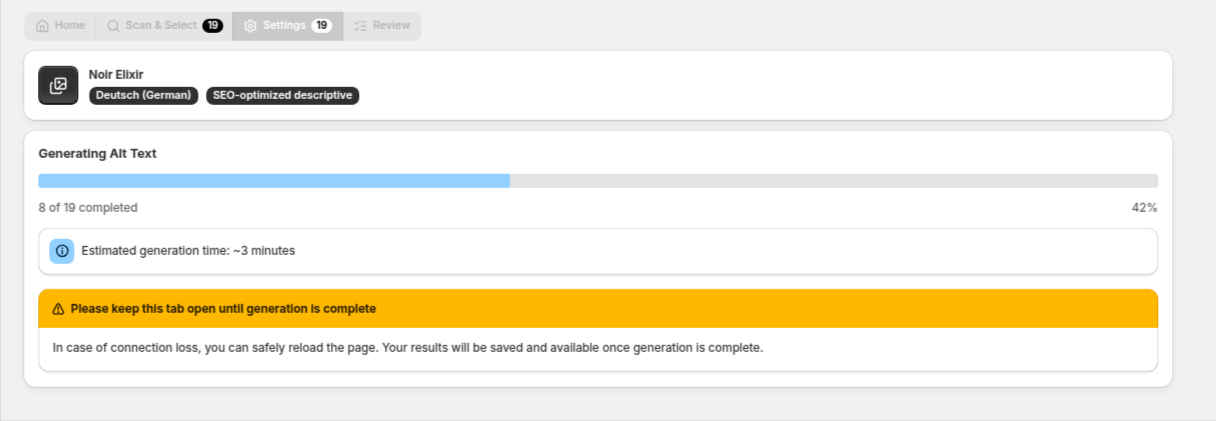
For each image the AI looks at the photo and the product title, then describes what it sees: the product name, colours, shape and setting, without filler like “image of”. It never guesses materials it can’t read on the photo.
The app asks you to keep the tab open until it finishes, but the work happens on the app’s servers: if you lose the connection, you can safely reload the page, and the results are saved and waiting once the batch is done. When it finishes, the app opens the Review tab for you. A running batch can’t be stopped, so double-check the selection before you press the button.
Step 5: Edit and reject alt text on one screen
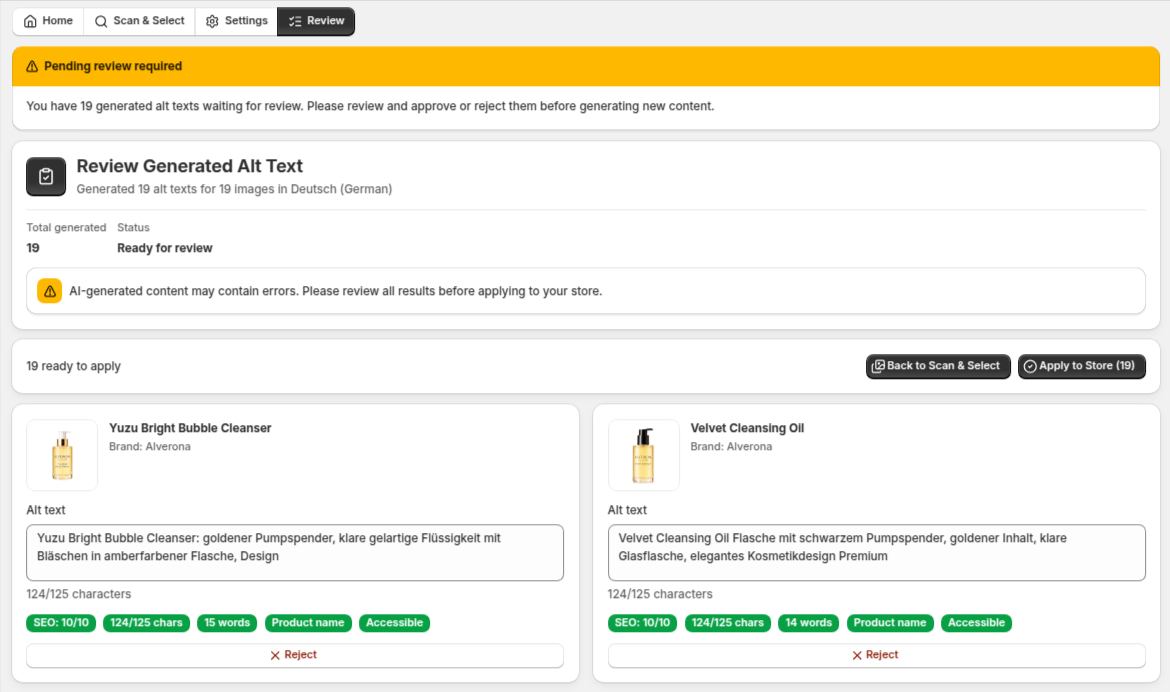
This is the bulk editing part: every result is on one page, two cards to a row, each with an editable Alt text field.
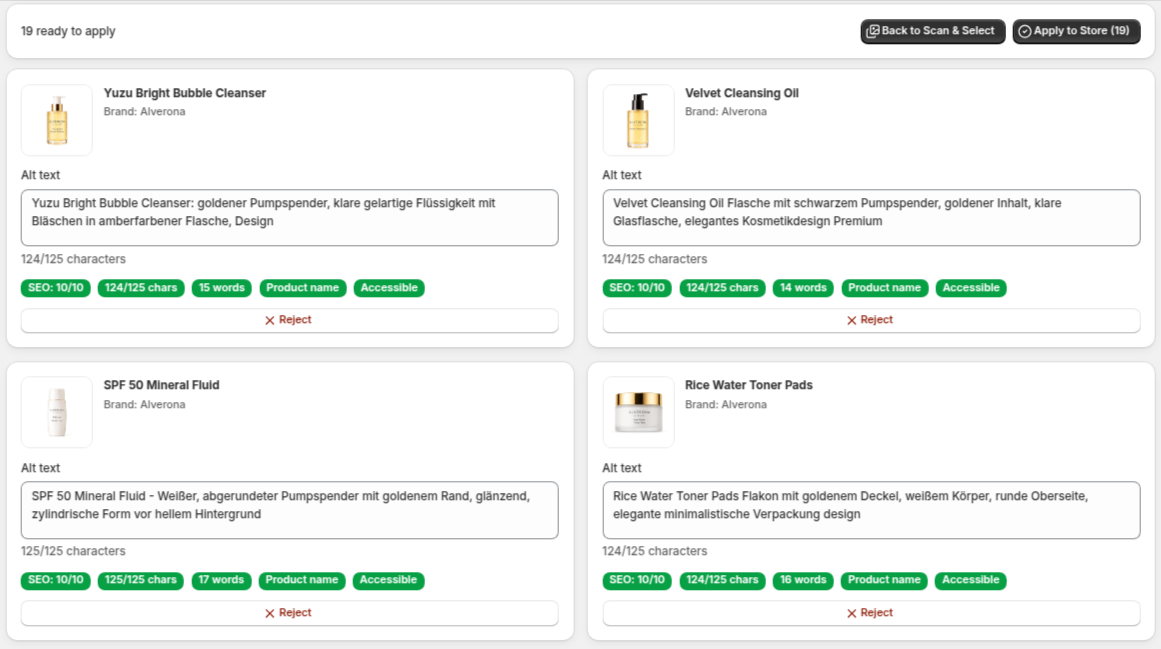
Read down the cards and fix what you’d write differently:
To edit, click into the field and type. There’s no save button; your edit goes to the store when you apply. Don’t reload the app before that, or your edits are lost.
To reject, press Reject on the card. It turns into Undo Reject, and a yellow banner replaces the apply button until you either press Confirm Rejections and Yes, Delete Permanently, or Clear Rejections.
Rejecting only throws away the AI’s suggestion. The image keeps whatever alt text it had before. Rejected results still count towards your plan’s monthly image allowance, because the text was written.
Under each field you see the character count against your limit (124/125 here). The green badges below it are an SEO score out of 10, the character and word counts, Product name when the text contains the full product title, and Accessible when it has a usable length and no generic words. They describe the AI’s original text and don’t change as you edit; treat them as hints.
Step 6: Apply all the alt text to your Shopify store
When the cards read right, press Apply to Store. The button shows how many results are left, Apply to Store (19) here, and it sends all of them at once, with your edits.
In your store’s main language, the text is written as each image’s alt text in Shopify, replacing what was there. In any other language, like German in our example, it’s saved as that language’s translation of the alt text. There’s no undo, so this is the moment to be sure. The app takes you back to Scan & Select with updated figures, and the image rows now show the new text.
Step 7: Repeat for the next batch
Only one batch runs at a time, and while results are waiting on Review, the rest of the app is locked: a yellow “Pending review required” banner asks you to approve or reject them before generating anything new. Once you’ve applied, everything unlocks: press Quick Select again, then Configure Settings, Generate Alt Text, review and apply.
In our example store all 19 images fit into one batch, so one round finishes the catalog. A bigger store just repeats the loop, up to 100 images at a time.
Tips for bulk editing Shopify alt text
Start small. Generate 5 images first, read them, adjust the length or the brand option, then run a full batch.
Fix product titles first. The AI builds every text around the title. “Serum 01” gives it far less to work with than “Vitamin C Brightening Serum”. After renaming, press Rescan Images so the app uses the new titles.
Edit rather than regenerate. Fixing a word in the field costs nothing. Regenerating means rejecting, selecting the image again and running another batch.
Rescan after catalog changes. The list is a snapshot from the last scan. New products appear only after Rescan Images.
FAQ: bulk editing image alt text in Shopify
Can I bulk edit alt text in Shopify without an app?
Only through the product CSV: export your products, fill in the Image Alt Text column, and import the file again. You still write every text yourself, and an import can overwrite other product data. The Shopify admin itself edits alt text one image at a time.
How many images can I edit at once?
Up to 100 per batch. Apply them, then select the next batch.
Can I type my own alt text for an image the app hasn’t generated?
Not in the app. You can rewrite any generated text on Review before applying it, but to type alt text from scratch, use the product’s media editor in Shopify.
Does the app change anything except alt text?
No. It never touches your product titles, descriptions, file names, images or theme.
Does it work for stores in several languages?
Yes. Pick the language in the Generation language selector, scan, and generate; text in another language is saved as a Shopify translation. See multi-language alt text for Shopify product images.
Bulk edit your Shopify alt text today
Opening every product to type alt text is the reason most catalogs never get it. With GoodySell AI Alt Generator, the job becomes a short loop: scan, select up to 100 images, generate, check, apply.
Install GoodySell AI Alt Generator from the Shopify App Store, press Scan Images, and your first batch of product images can have alt text before your coffee’s cold.