How to Add a Countdown Bar to the Top of Your Shopify Store
A countdown bar at the top of your Shopify store shows every shopper the offer, the code and exactly how long is left, on every page. This step-by-step guide sets one up with GoodySell Countdown Timer: write the text, set the deadline, pin it while shoppers scroll, and let it take itself down when the sale ends. No theme code.
How to Add a Countdown Bar to the Top of Your Shopify Store
GoodySell Countdown Timer adds a live countdown bar across the top of your Shopify store in a few minutes, without touching your theme's code. Here's the whole setup, step by step.
Why the top of your Shopify store is the right place for a countdown
The strip above your header is the first thing every shopper sees, on every page they land on, from a product link in an ad to your home page. Put a deadline there and nobody misses the sale, and nobody has to go looking for the end date.
A countdown bar does three things a plain "Sale now on" banner can't:
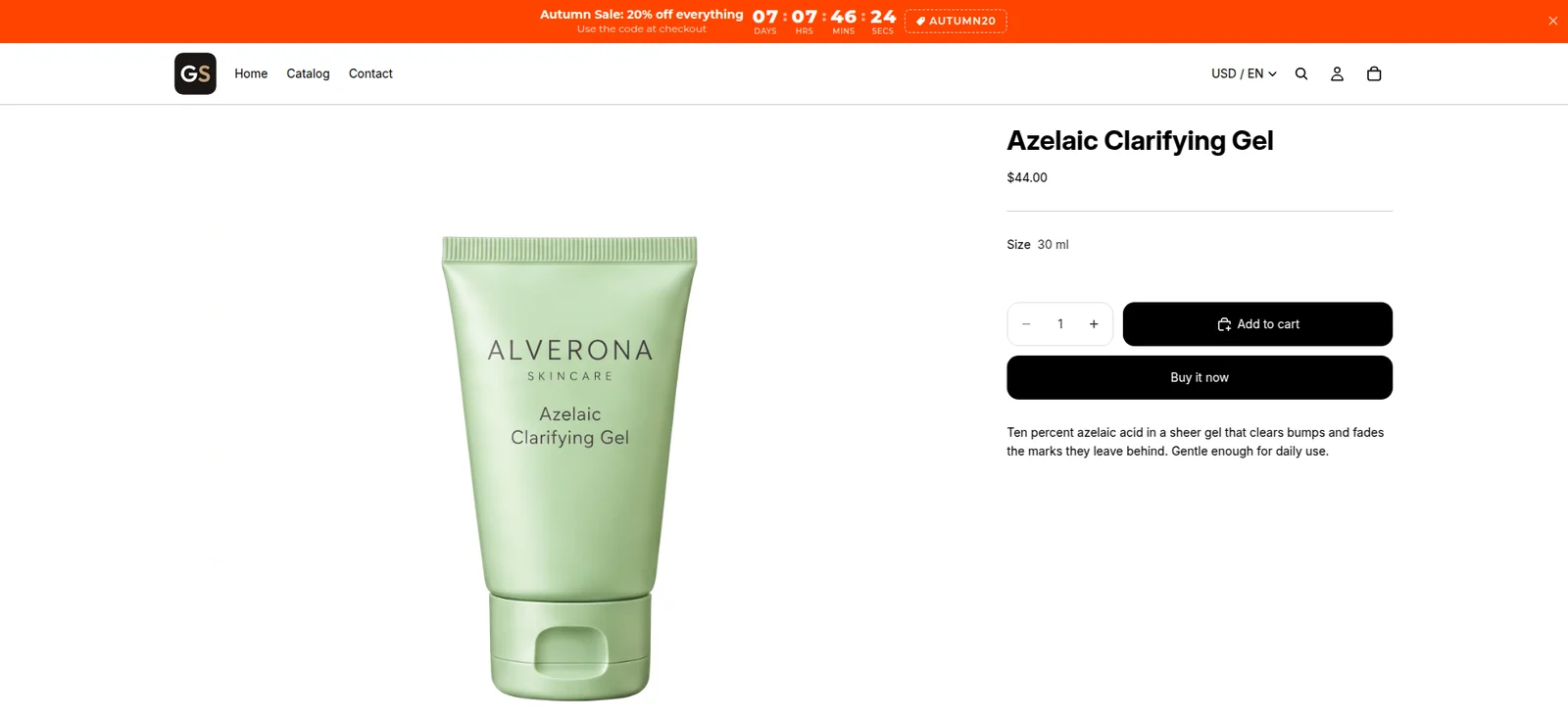
It shows the deadline, not just the offer. A clock reading "07 : 07 : 46 : 24" is more convincing than "ends soon", because shoppers can see the deadline is real.
It stays in view. Switch on one setting and the bar follows shoppers down the page, so the clock is still there when they're deciding on a product.
It takes itself down. When the countdown reaches zero, the bar disappears from your store. No banner still advertising a sale that ended yesterday.
The rest of this guide builds the bar above: an autumn sale on a skincare store, 20% off everything with the code AUTUMN20, ending on Monday 9 November at 11:59 PM.
Step 1: Turn on the app embed in your Shopify theme
A countdown bar is drawn by the app's app embed, a single on/off switch in your Shopify theme settings. You don't edit any code, and you only do this once.
On the app's home page, in the Complete Setup card, click Enable app embed. Your theme editor opens in a new tab.
Find the App embeds section and toggle on GoodySell Countdown Timer.
Click Save in the top right corner.
Back in the app, click I've done it. The card changes to Widget Activated.
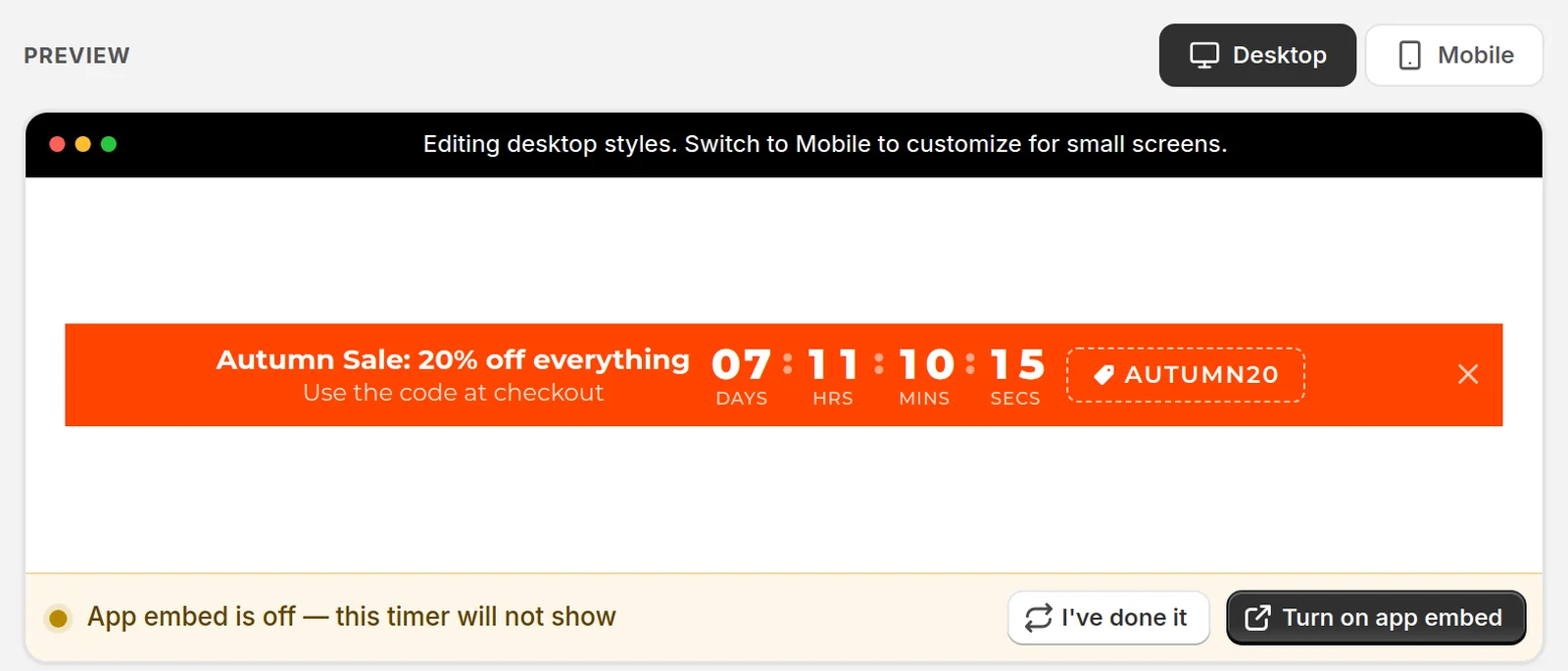
If you skip this step, the editor reminds you. The strip under the preview says App embed is off — this timer will not show and gives you a Turn on app embed button that does the same job.
Step 2: Create a Top/Bottom Bar timer
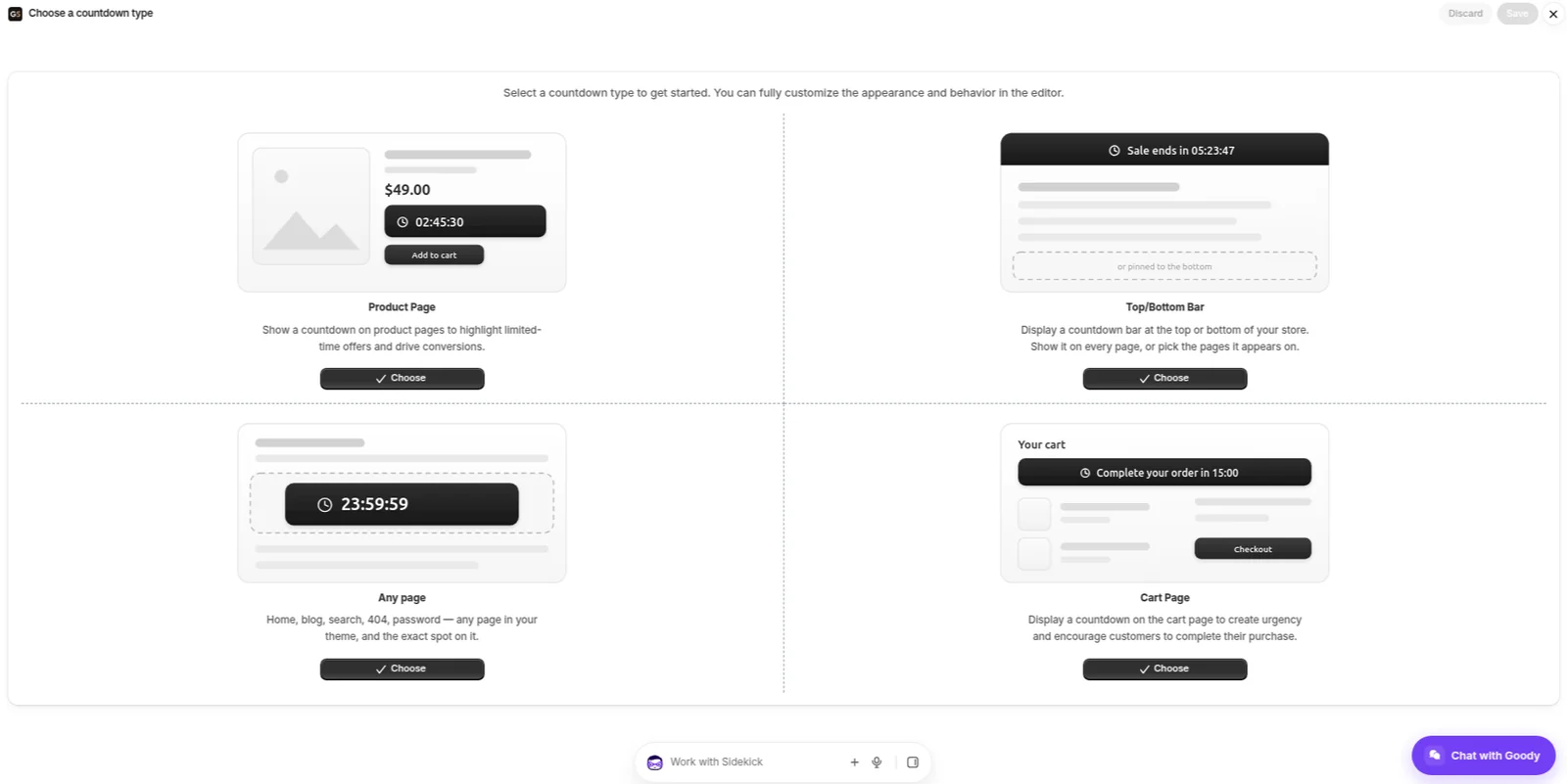
On the home page, in the All Countdowns card, click Create New Countdown. The app asks you to Choose a countdown type. Pick Top/Bottom Bar and click Choose.
 The editor opens full screen: the sections on the left, the form in the middle, and a live preview of your bar on the right. The preview updates as you type, so you see every change before a shopper does.
Give the timer a name in Name & visibility, such as "Autumn Sale Top Bar". Only you see the name, but the app won't save a timer without one. The switch below it is already on Live on your storefront.
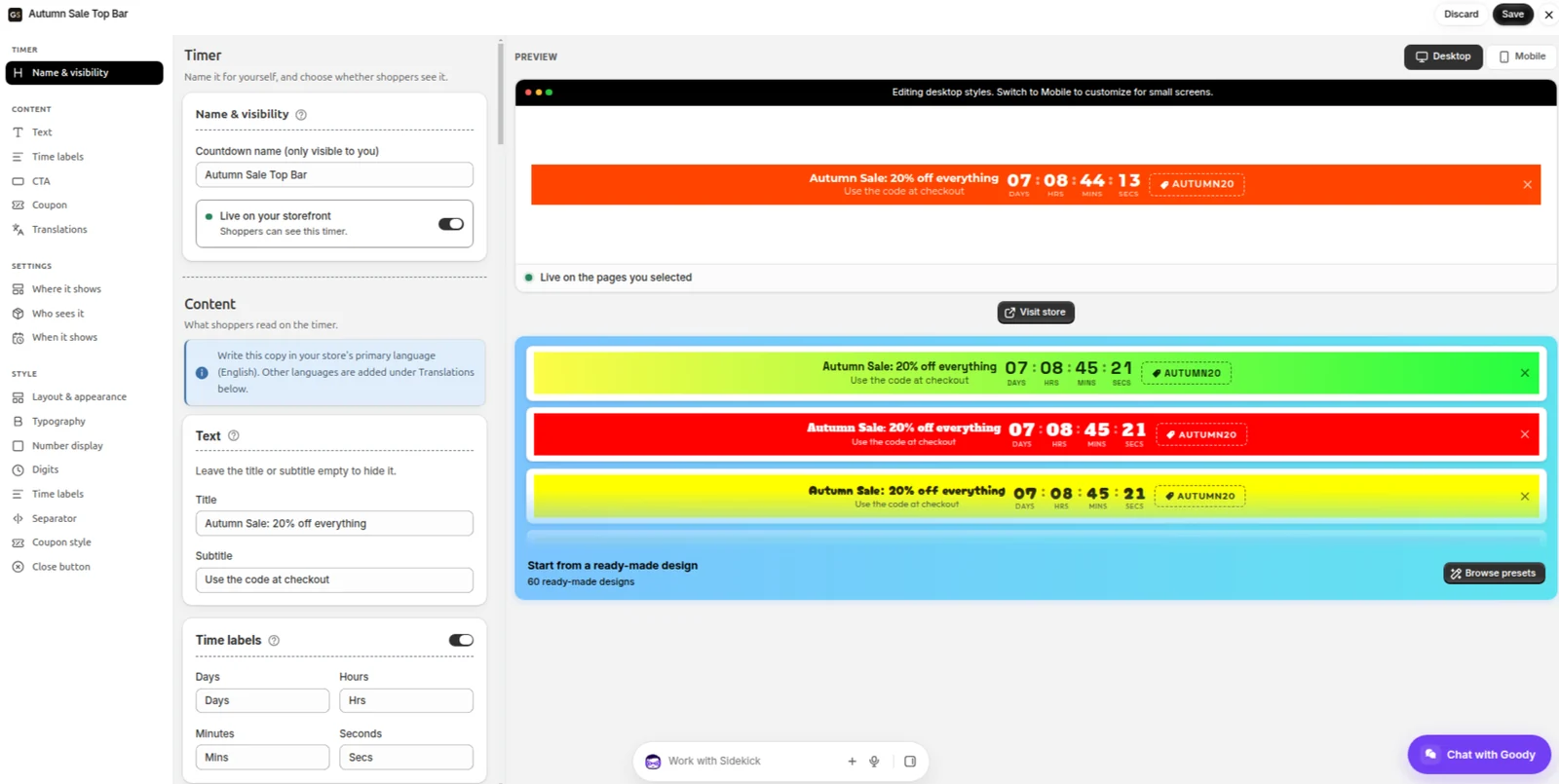
Step 3: Write the text for your Shopify countdown bar
In the Text card, replace the sample copy with your own:
Title:
Autumn Sale: 20% off everythingSubtitle:
Use the code at checkout
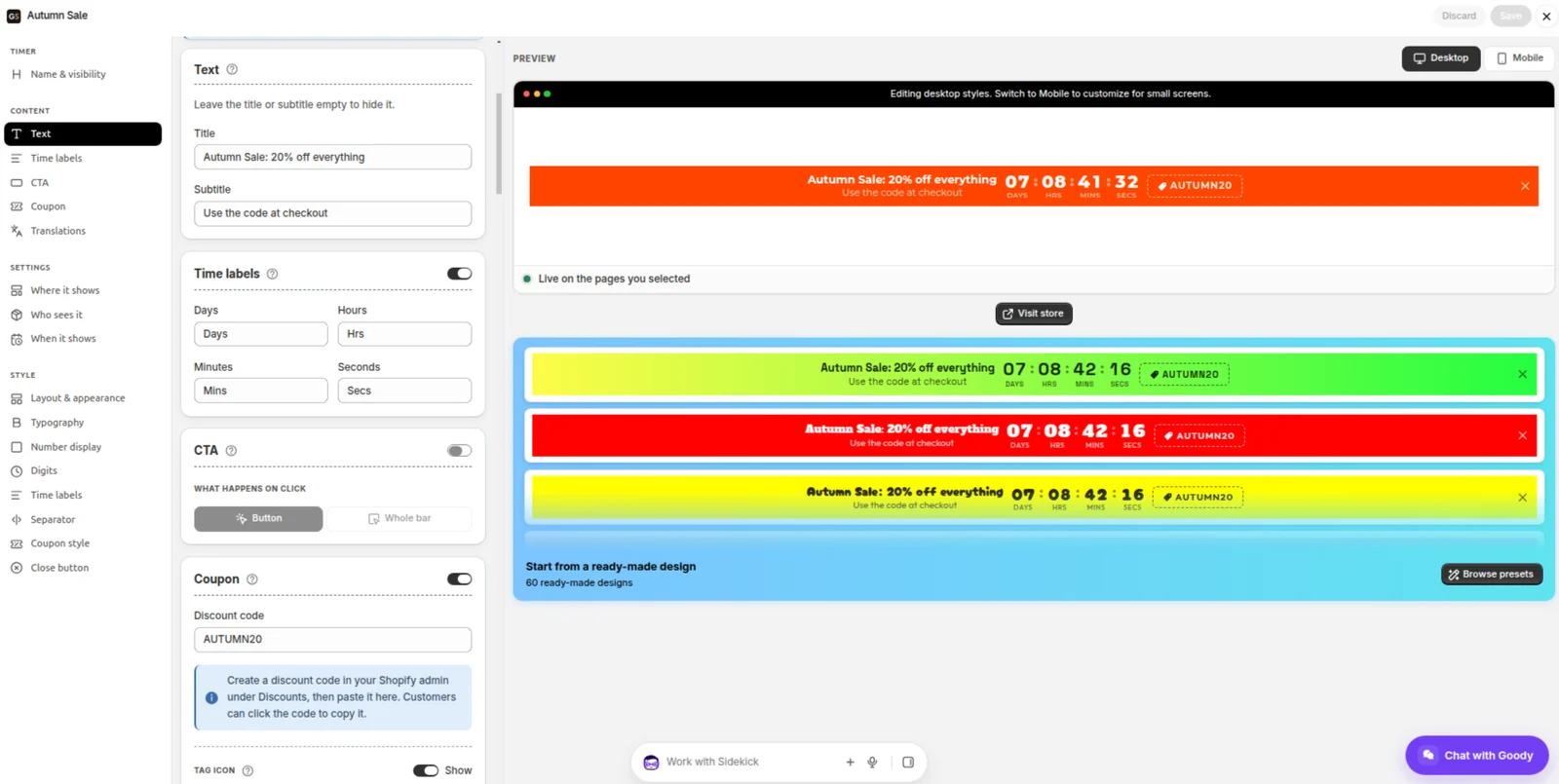
Keep it short. The bar sits next to a ticking clock, and the clock does the selling. One line for the offer and one for what to do about it is plenty. Leave the subtitle empty if you don't need it.
Under Time labels you can rename "Days", "Hours", "Mins" and "Secs", or switch the labels off. If your Shopify store sells in more than one language, Translations lets you add the bar's text for each one.
Step 4: Add your Shopify discount code
Switch on the Coupon card and type the code into Discount code. It appears on the bar as a tag that shoppers can click to copy, which saves them writing it down and mistyping it at checkout.
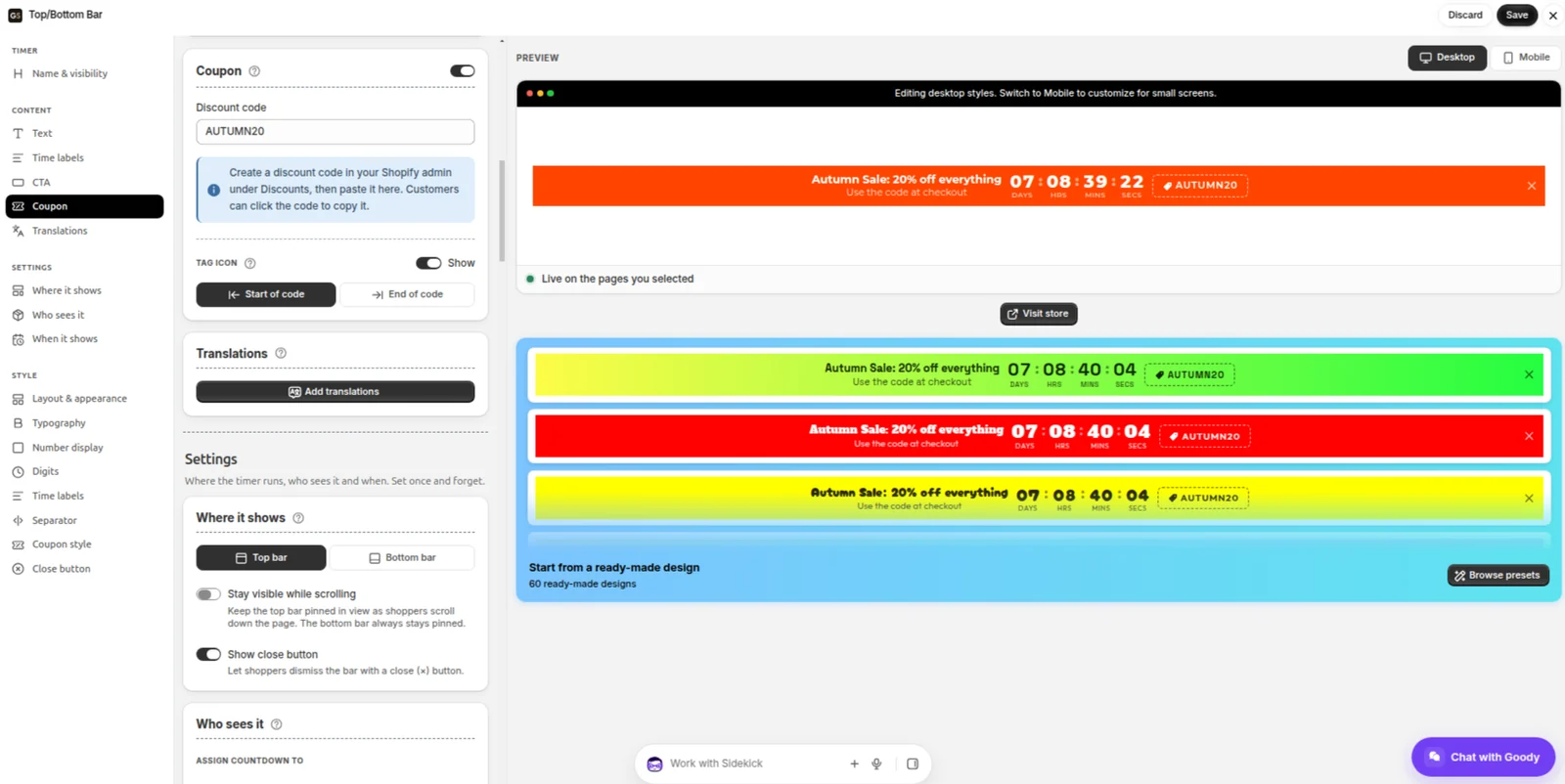
One thing to know: the bar shows the code, but the discount itself lives in Shopify. Create AUTUMN20 in your Shopify admin under Discounts first, and give it the same end date as the countdown. Otherwise the bar disappears on Monday night and the code keeps working on Tuesday.
Want the whole bar to take shoppers somewhere, such as your sale collection? In the CTA card, choose Whole bar and set the link. Or add a Button instead.
Step 5: Set when the countdown ends
Scroll to When it shows. A new bar is already set to Count down to a specific date, which is what a sale needs.
Under Starts, leave Now selected. Choose Scheduled instead if you want to build the bar today and have it appear later, for example on Friday at 9:00 AM.
Under Ends, set the End date to 9 November 2026 and the End time to 11:59 PM.
Under When time runs out, leave Remove the timer.
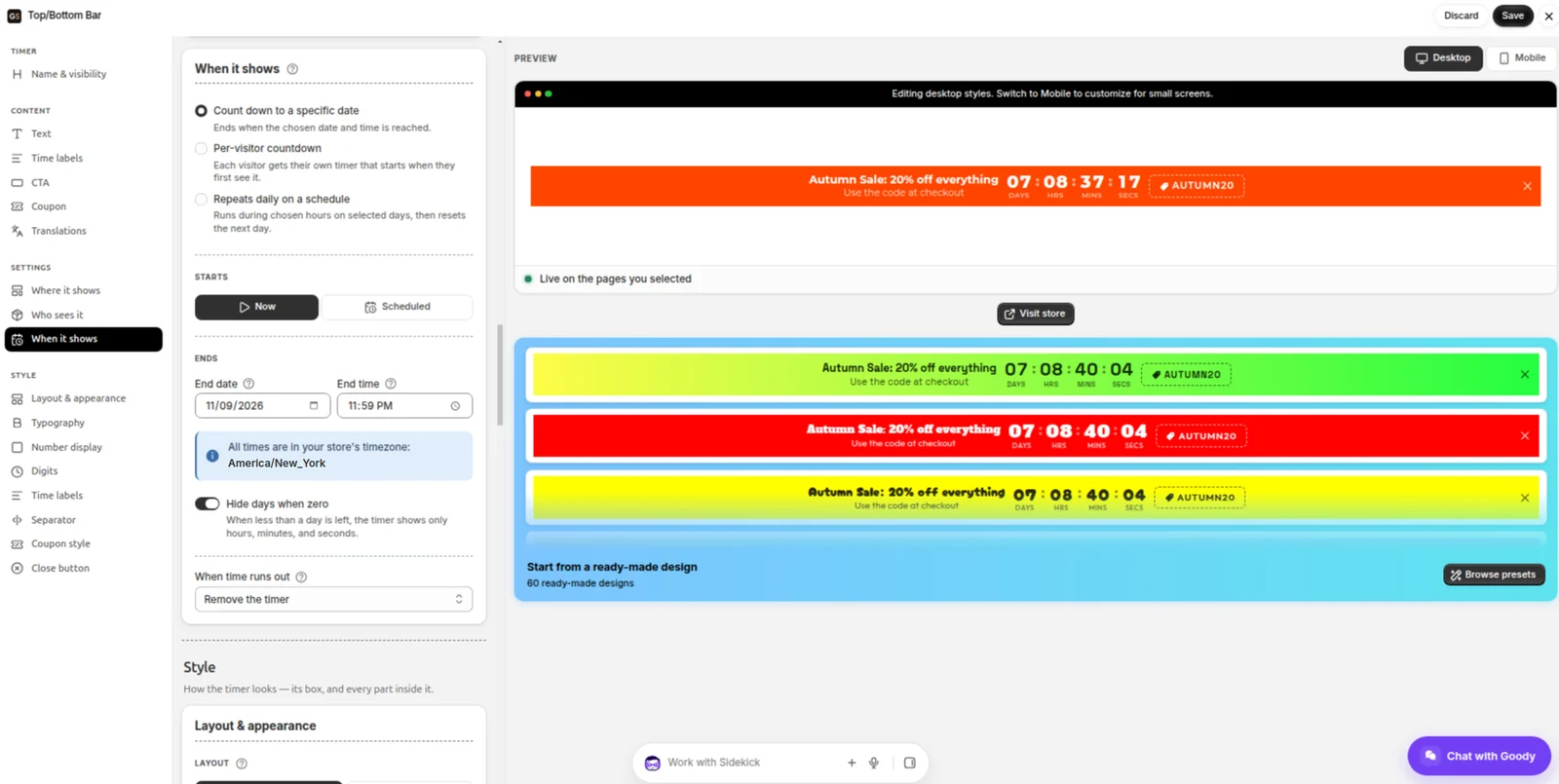
All times are in your Shopify store's timezone, and the editor shows it under the fields. The store in this guide runs on New York time, so "11:59 PM" means 11:59 PM in New York. If you run the store from London, that's 4:59 AM on Tuesday on your own clock.
Remove the timer is the important part. When the countdown reaches zero, the bar disappears for every shopper at once, including anyone who has the page open. You can also choose Display a custom message ("This sale has ended!") or Keep showing 00:00:00. Hide days when zero, on by default, drops the days once less than a day is left, so the last day reads like a proper final countdown.
The same card has two other modes for other kinds of deadlines:
Per-visitor countdown gives each shopper their own timer, for example 30 minutes from their first visit to claim a welcome offer.
Repeats daily on a schedule runs the bar during set hours on chosen days, such as a flash sale every weekday from 6 PM to 9 PM, and hides it the rest of the time.
Step 6: Pin the bar to the top of your Shopify store
Go to Where it shows:
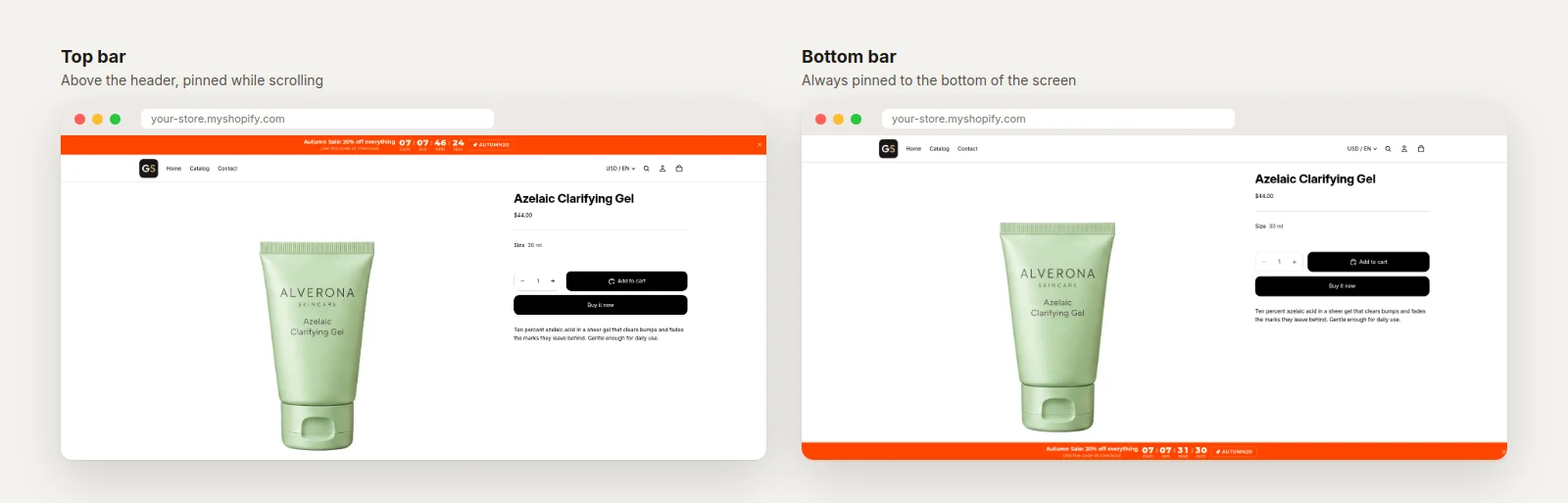
Choose Top bar. The bar sits above your theme's header, across the full width of the page.
Switch on Stay visible while scrolling. It's off for a new bar, so by default the bar scrolls away with the header.
Leave Show close button on, so shoppers can dismiss the bar if they want to.
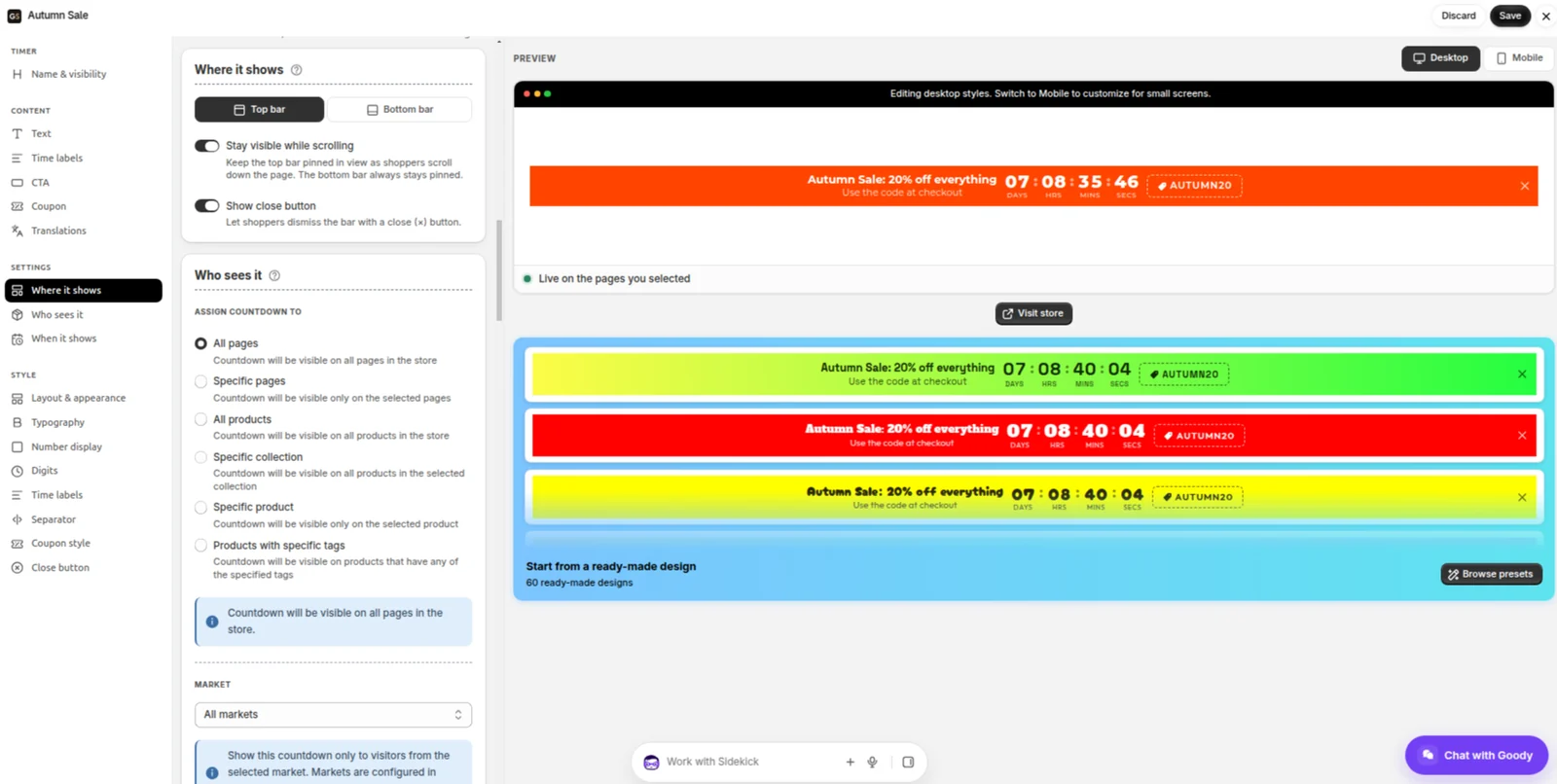
Stay visible while scrolling is the setting that earns its keep. Without it, the countdown is gone as soon as a shopper scrolls past the header. With it, the clock stays at the top of the screen while they browse products and read descriptions, which is exactly when they're deciding.
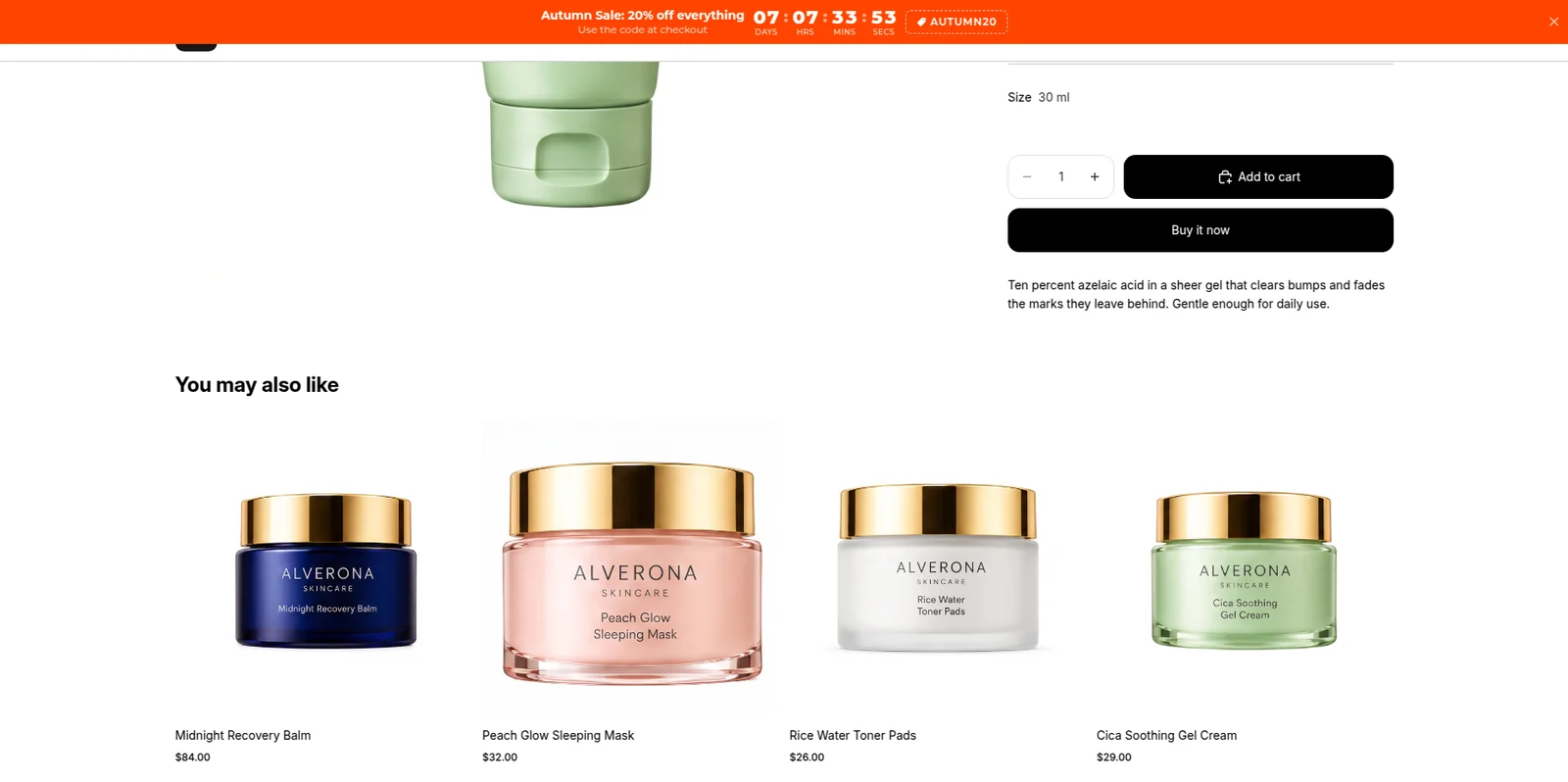 A shopper who closes the bar won't see it again on your store in that browser. The next time you save the timer, it comes back for everyone.
Prefer the bottom of the screen? Choose Bottom bar. It's always pinned, and the app adds space at the end of the page so it never covers your footer.
Step 7: Choose which Shopify pages show the bar
In Who sees it, a new bar is set to All pages, which is right for a store-wide sale.
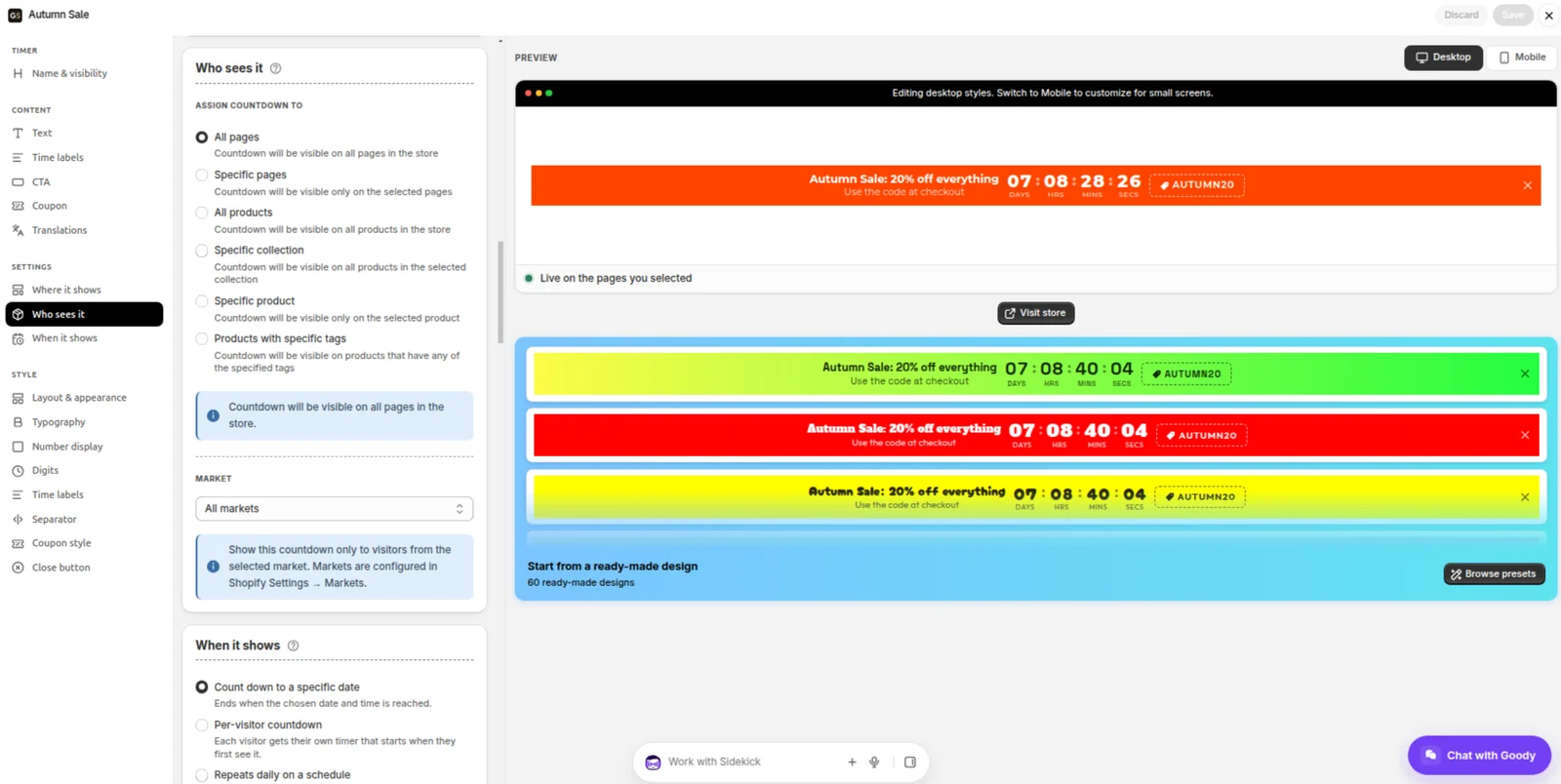
When the offer only covers part of the store, match the bar to it:
Specific pages shows the bar only on the pages you pick: page types such as Home, Product pages or Cart, single URLs like
/collections/sale, or every URL containing a word. You can also do it the other way round and hide the bar on the pages you pick.Specific collection shows it on that collection's page and on the product pages of its products. Good for "20% off all moisturisers".
Specific product, All products and Products with specific tags limit it to product pages.
Below that, Market limits the bar to shoppers in one of your Shopify Markets, for a sale that only runs in the United States, say.
Step 8: Pick a design for your countdown bar
Under the preview, Start from a ready-made design offers 60 bar designs. Click Browse presets and the gallery shows every one of them with your own text, your code and your countdown, so you're choosing between finished bars, not colour swatches.
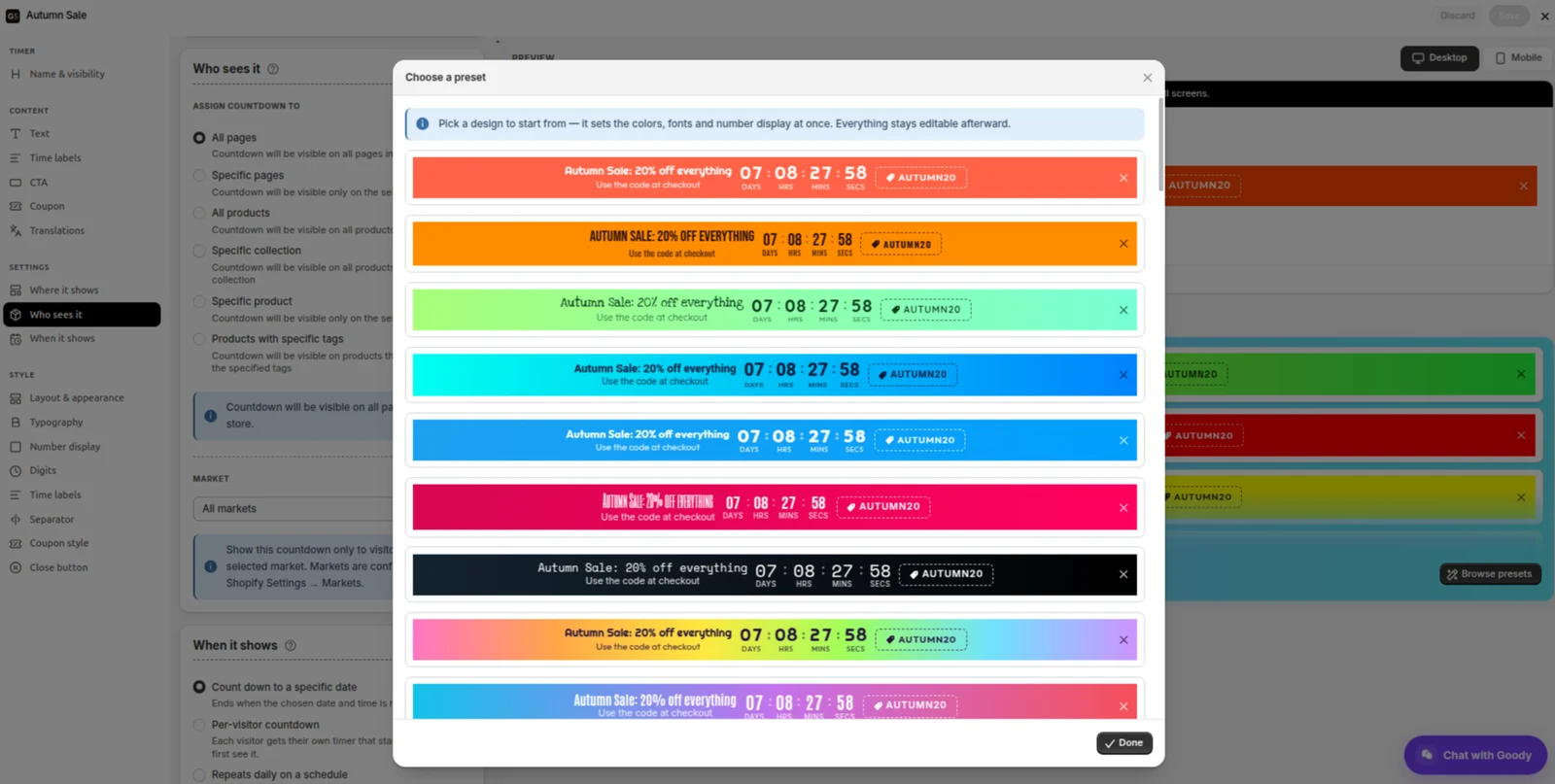
A preset sets the colours, fonts and number style in one click. Everything stays editable afterwards in the Style sections: Layout & appearance, Typography, Number display, Digits and the rest. If your brand has its own colours, start from the closest preset and change two or three of them.
Step 9: Check the bar on a phone
Most of your shoppers will see the bar on a phone, so check it there before you save. Switch the preview to Mobile. On a narrow screen the bar stacks into two short rows, so the text, the clock and the code stay readable.
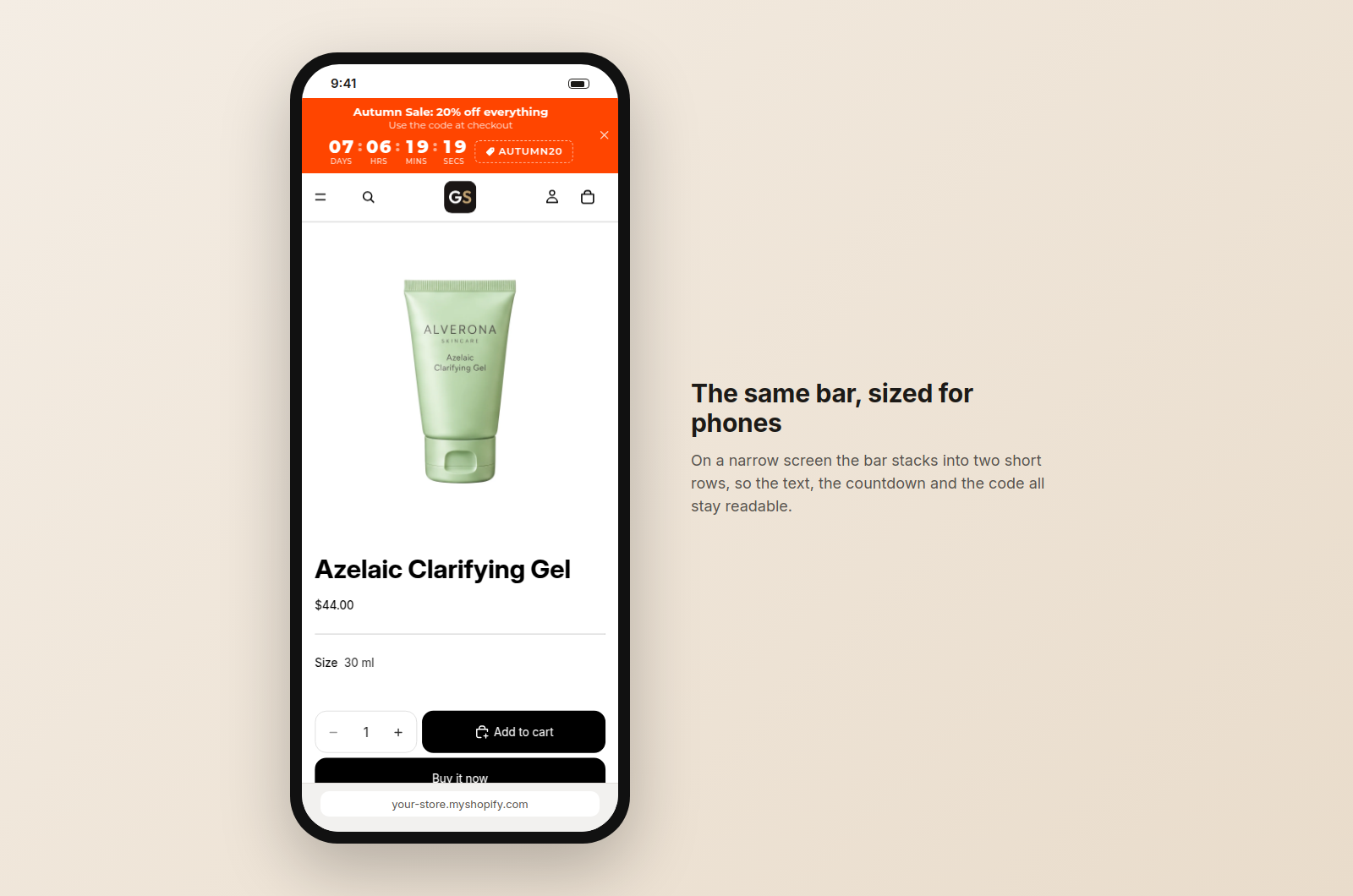 The Mobile tab is also where you make phone-only changes, such as a smaller title. They apply only to screens under 600 px, and the desktop bar stays as it is.
Step 10: Save and see it on your Shopify store
Click Save in the top right corner. Nothing reaches your store until you do.
Then open your store in a new tab: the bar is at the top of every page, counting down to Monday night. On Monday at 11:59 PM, New York time, it disappears by itself.
Tips for a Shopify countdown bar that sells
Make the deadline real. If the sale ends on Monday, end it on Monday. A countdown that quietly restarts on Tuesday teaches shoppers to ignore it.
One offer per bar. The offer, the time left, the code. Anything more and the bar becomes a paragraph.
Put the code on the bar. A copyable code turns "I'll remember that" into a discount used at checkout.
Pin it. A bar that scrolls away is only seen for a second or two.
Mind the contrast. The bar has to stand out from your header. If your header is dark, pick a bright preset, and the other way round.
Plan the whole campaign at once. Create a teaser bar that ends when the sale starts, the sale bar with a Scheduled start, and a "last day" bar for the final day. They take turns on their own.
FAQ: countdown bars on Shopify
Do I need to edit my Shopify theme's code? No. The bar is drawn by the app embed, which you switch on in the theme editor without opening any code. There's no block to place for a bar either.
Does the countdown bar work with my Shopify theme? Yes. A bar needs no app block, only the app embed, so it works on Online Store 2.0 themes such as Dawn and Horizon and on older themes that don't support app blocks. It's placed at the very top of the page, above the header.
Does the countdown change my prices? No. The bar shows the deadline and the code. The discount itself is a code you create in Shopify under Discounts.
Can I show more than one countdown bar? Yes. Several top bars stack one below the other and never overlap. You might run a store-wide bar and a second one only on your moisturiser collection.
Can I see the bar before it starts? In the editor, always: the preview shows the bar whatever its schedule. On your store, the bar appears at its start time.
What happens when the sale is over? With Remove the timer, the bar disappears from your store at the end time. The timer stays in your list in the app, so next time you change the dates and save it again.
Add a countdown bar to your Shopify store today
A countdown bar is the simplest way to make a sale feel like it's actually ending: a real deadline, at the top of every page, in view while shoppers scroll, and gone the moment the offer is.
Install GoodySell Countdown Timer from the Shopify App Store, choose Top/Bottom Bar, and your next sale can have its own countdown before the end of the day.