How to Schedule Your Shopify Announcement Bar to Start and Stop Automatically
Five ways to make your Shopify announcement bar switch itself on and off, from launch dates and weekend sales to welcome offers and daily happy hours.
We'll do all of this with GoodySell Announcement Bar, a Shopify app that adds start dates, end dates and daily schedules to your store's announcement bar.
The announcement bar is the strip of text across the top of your Shopify store, and it's only useful while what it says is true. "Sale ends Sunday" is a great message on Saturday and a broken promise on Monday.
This guide shows you how to schedule your Shopify announcement bar so it switches itself on and off: on a launch date, between the two dates of a sale, for the first few minutes of each new visitor, or at the same hours every weekday. You set it once, and the bar keeps to the schedule without you, and without touching your Shopify theme's code.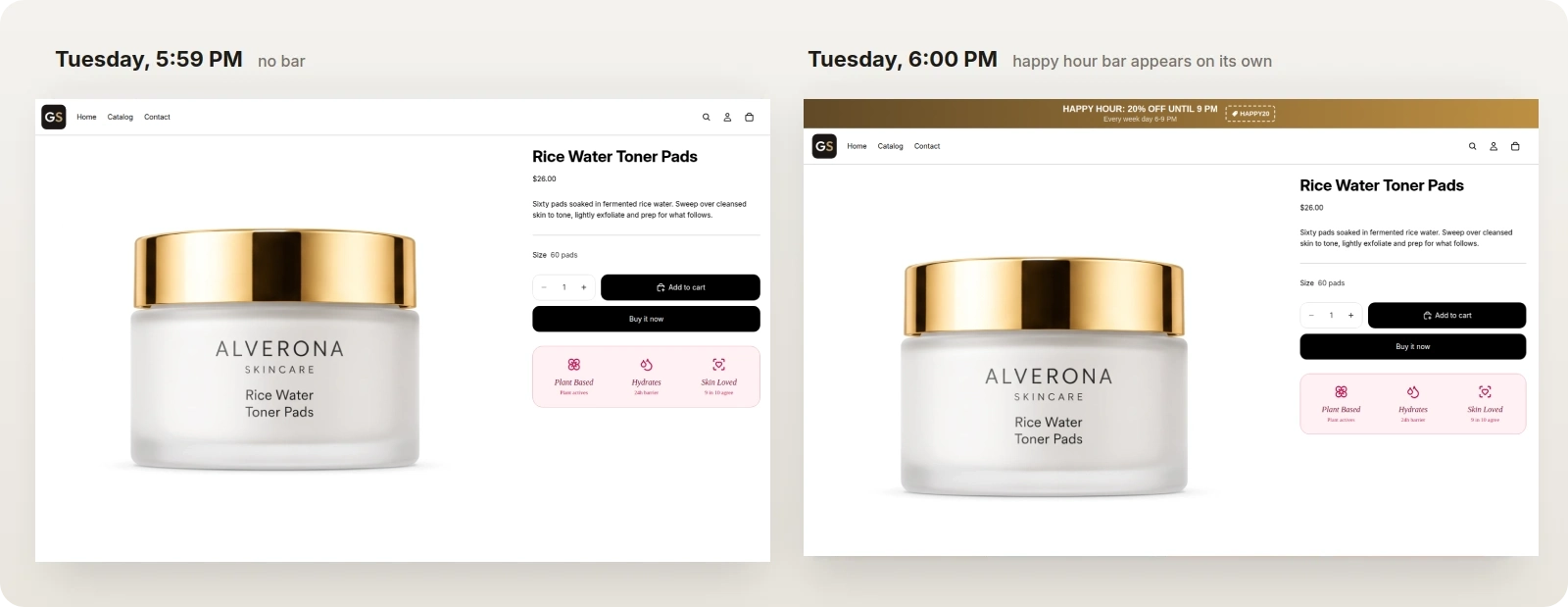 The same Shopify page a minute apart. Nobody touched the store at 6 PM. The bar's schedule did it.
The problem: Shopify's built-in announcement bar has no schedule
The announcement bar that comes with most Shopify themes has no start date and no end date. It shows whatever you last typed into it, until you type something else. So every bar has a person attached to it. Someone puts the sale banner up on Friday evening. Someone takes it down on Sunday at midnight. Someone remembers, on Monday, to put the new collection banner up at 9 AM.
That works until it doesn't:
The bar outlives the offer. The sale ended on Sunday, the bar still says "20% off" on Tuesday, and shoppers who try the code get an error. It's worse than having no bar, because now your store looks careless and your deadlines look made up.
The bar is late. The launch email goes out at 9 AM, the shopper clicks through, and the home page still shows last week's message, because the person who changes it is in a meeting.
Nobody is awake at midnight. Sales start and end at midnight because that's what shoppers expect. People don't do their best work at midnight.
Time zones. Your store runs on New York time, you're in London, your developer is in Lisbon. "Ends at midnight" means three different moments to the three of you.
Repeating offers are a chore. A happy hour every weekday from 6 PM to 9 PM means switching a banner on and off ten times a week, forever.
The fix is to stop editing the bar at the moment it needs to change, and instead tell it, in advance, when to change. Shopify themes can't do that on their own, so it takes an announcement bar app.
How announcement bar scheduling works on Shopify
In GoodySell Announcement Bar, whether a shopper sees a bar right now depends on two settings. They answer two different questions.
1. Is this bar allowed to show at all? That's the switch in Name & visibility: Live on your storefront, or a draft. A draft never shows to shoppers, whatever its schedule says.
2. When does it show? That's the When it shows card, further down under Settings. It has five modes, and it's what the rest of this guide is about.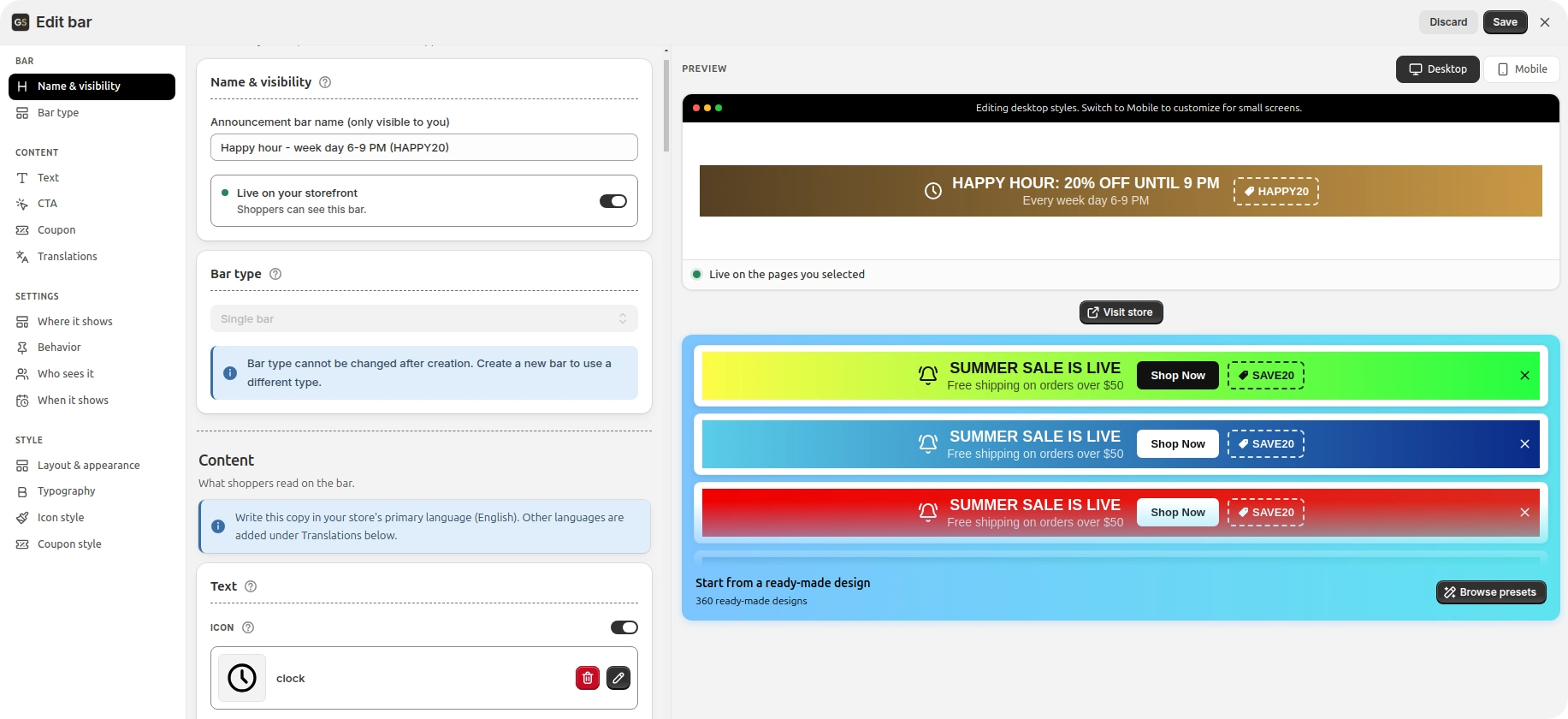 Live means "allowed to show". The schedule decides when.
So a bar you've scheduled for next month still needs to be Live. That feels backwards at first ("but I don't want it showing yet!"). It won't show yet. The schedule keeps it hidden until its time comes. Live just means it's allowed to, when it does.
One more thing to know before you start: the preview in the editor always shows the bar, whatever the schedule. That's on purpose, so you can design a bar for next month today. The schedule is applied on your live Shopify store, not in the editor.
Before you start: turn the app on in your Shopify theme
If this is your first bar, there's one switch to flip in your Shopify theme editor first, the app embed, which gives the app permission to show bars on your store. You don't edit any theme code. The app's home page walks you through it step by step.
Then create a bar, or open one you already have, and scroll to When it shows.
Five ways to schedule a Shopify announcement bar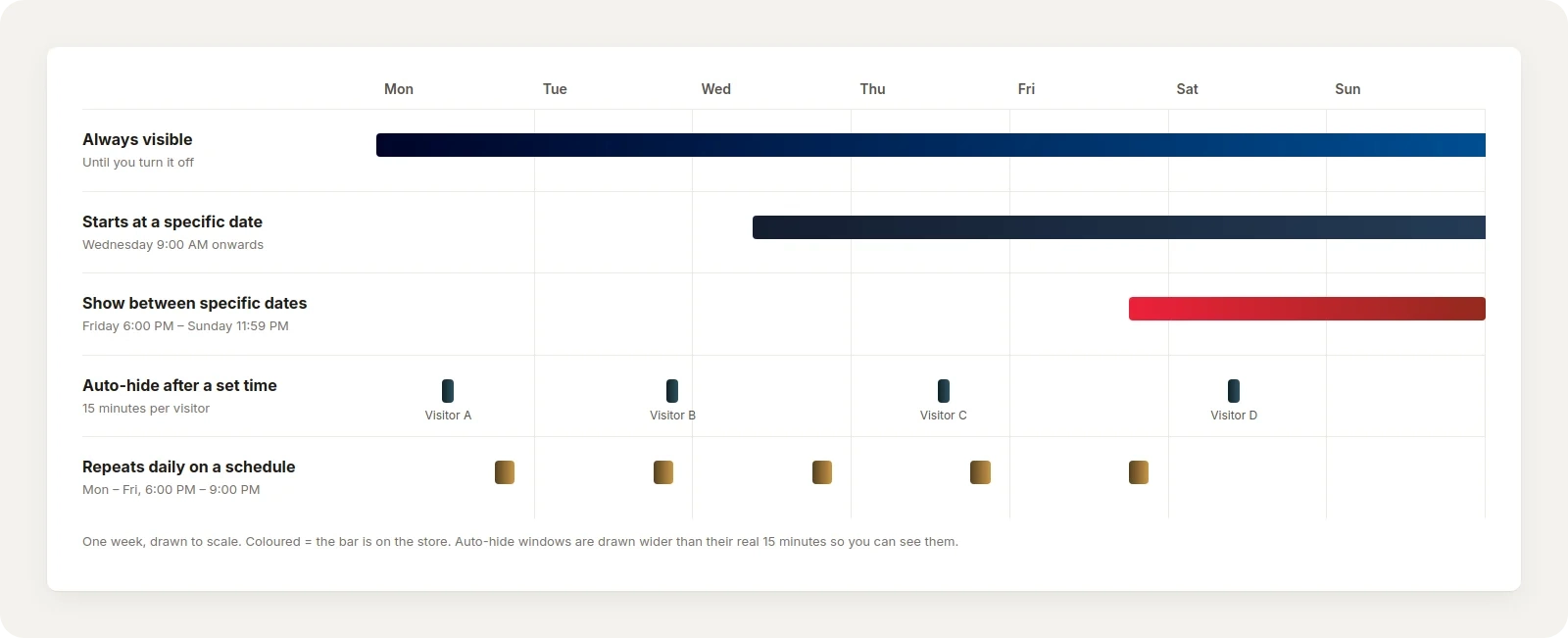 One week, drawn to scale. Each row is one schedule mode, and the coloured stretches are when shoppers see the bar.
ModeThe bar shows…Use it forAlways visibleAll the time, until you turn it offFree shipping, returns policy, anything permanentStarts at a specific dateFrom a date and time onwardsA launch, a new policy, a store reopeningShow between specific datesFrom one date and time to anotherSales, promotions, holiday shipping deadlinesAuto-hide after a set timeFor a number of minutes per visitorA welcome offer for new visitorsRepeats daily on a scheduleOn chosen days, between two timesHappy hours, daily deals, "order by 2 PM for same-day dispatch"
And here's what each of those might look like on a Shopify store: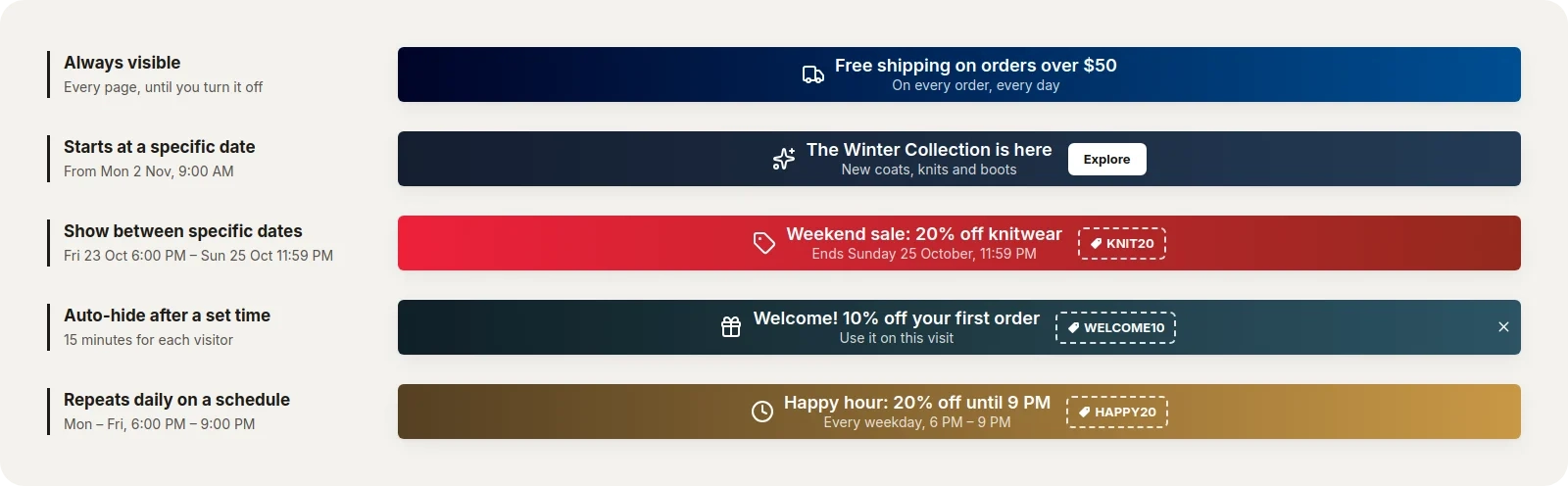 One bar per mode. The label on the left is the schedule that runs it.
Let's go through them one at a time.
Always visible
This is the default, and it means what it says: the bar is on until you switch it off yourself.
It's the right choice for facts that don't expire. "Free shipping on orders over $50." "Free returns within 30 days." If the message is still going to be true in six months, it doesn't need a schedule.
Starts at a specific date
The bar stays hidden until the date and time you choose, then appears and stays up until you turn it off. There's no end date.
Use it for anything that begins but doesn't end on a known day: a new collection, a new shipping policy, a reopening after a holiday.
Example: a winter collection that goes live on Monday 2 November at 9 AM.
In When it shows, choose Starts at a specific date.
Set the Start date to 2 November and the Start time to 9:00 AM.
Check the bar is Live, and save.
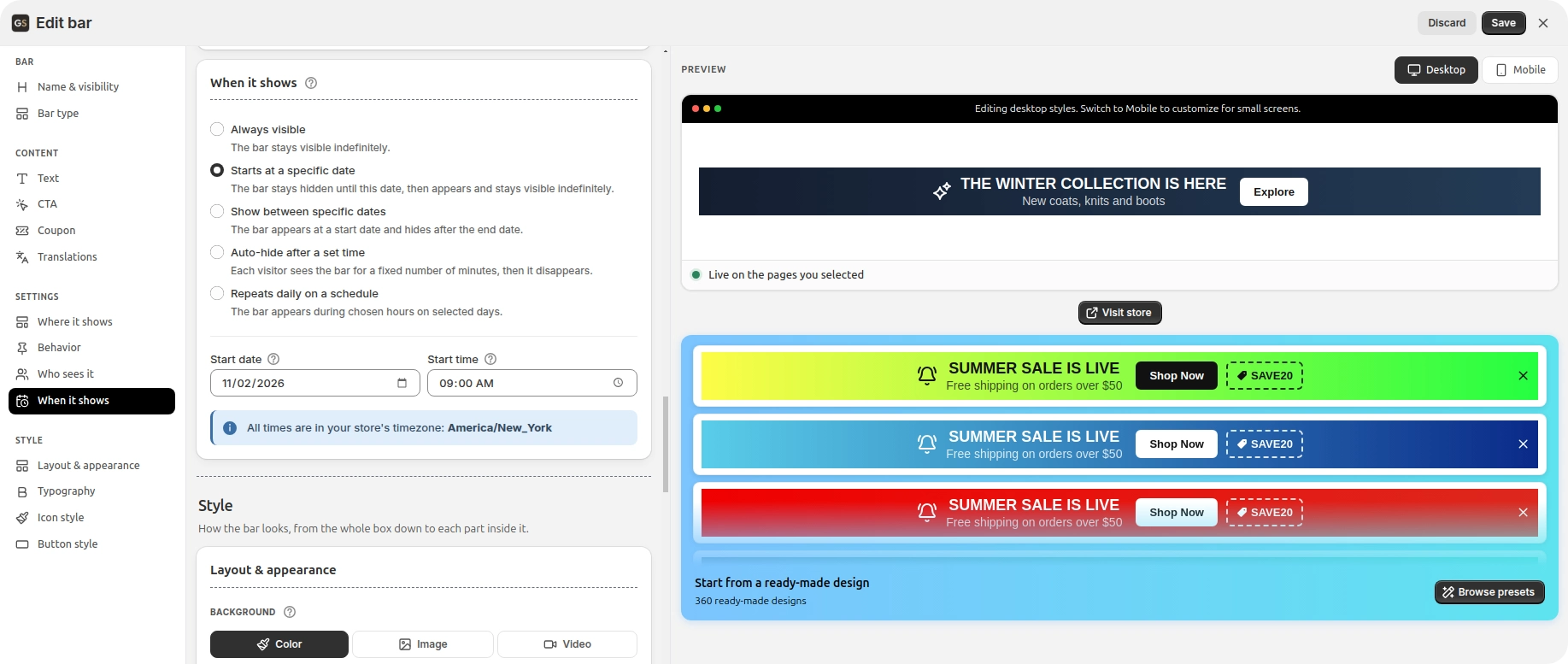 The launch bar appears at 9 AM on 2 November and stays until you take it down.
Now you can build the launch bar on a quiet Thursday afternoon, check it in the preview, and forget about it. At 9 AM on Monday it's there. The editor only accepts a start date of today or later, so you can't accidentally schedule something into the past.
Show between specific dates
The bar appears at the start date and time, and disappears after the end date and time. This is the mode for anything with a deadline, which is to say most promotions.
Example: a weekend sale on knitwear, from Friday 23 October at 6 PM until Sunday 25 October at 11:59 PM.
Choose Show between specific dates.
Start date 23 October, Start time 6:00 PM.
End date 25 October, End time 11:59 PM.
Check the bar is Live, and save.
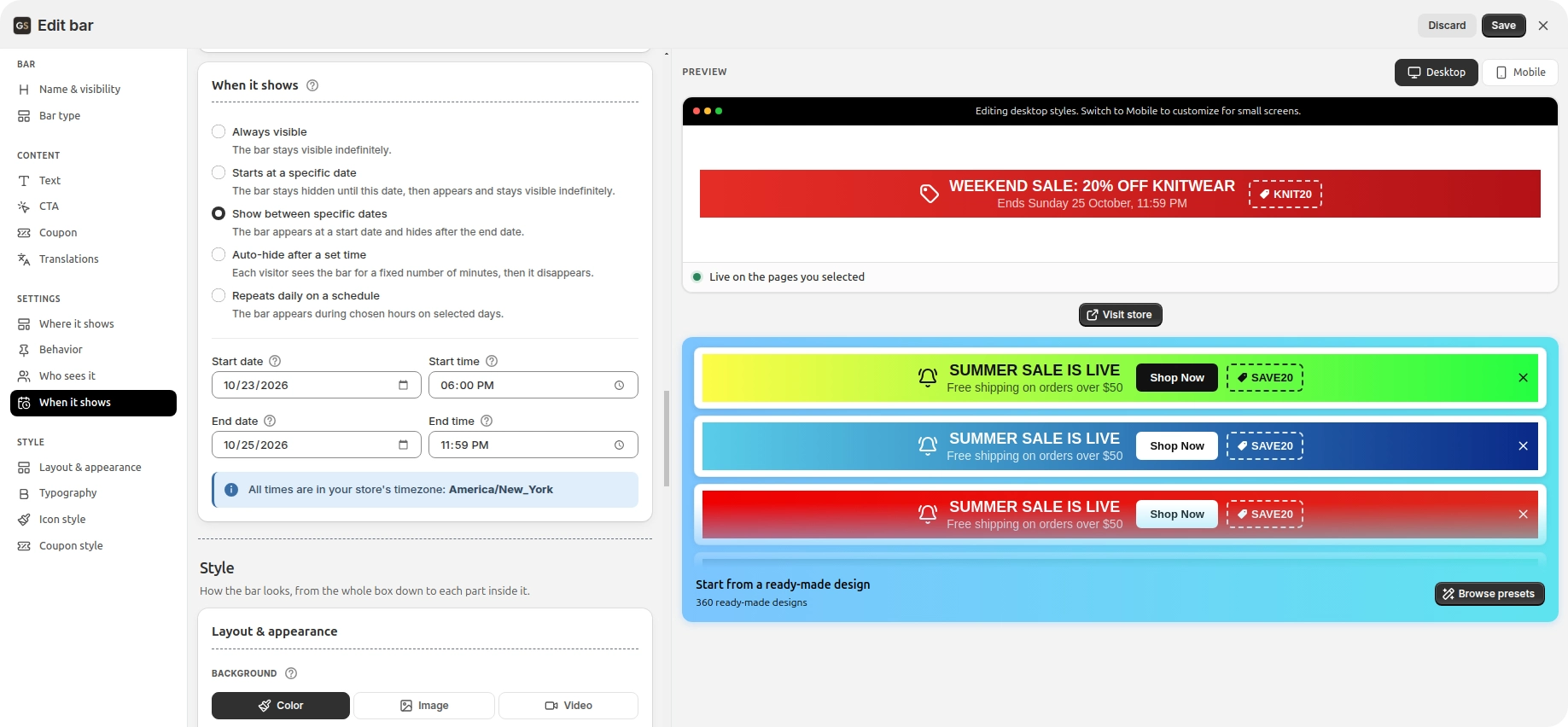 The weekend sale bar: on at 6 PM on Friday, off at the end of Sunday.
A few things worth knowing:
It disappears even for someone who's on the page. The bar checks its schedule every second while the page is open. A shopper browsing at 11:58 PM on Sunday will see the bar go when the end time passes, without reloading. Nobody sees a sale that's over.
The editor won't let you save an impossible window. If the start is after the end, or a date is already in the past, you'll get a message ("Must be before end date", for example) instead of a bar that silently never appears.
The discount needs its own dates. The bar shows your code; it doesn't control it. If the bar advertises
KNIT20, go to Discounts in your Shopify admin and give that code the same start and end. Otherwise the bar disappears on Sunday night and the code keeps working on Monday, for anyone who saved it.
Auto-hide after a set time
This mode works differently from the rest. It isn't about the calendar. It's about each visitor.
Each shopper sees the bar for the number of minutes you choose, counted from the first time they see it. When their time's up, the bar hides for them, and stays hidden, even if they come back tomorrow. Someone who arrives an hour later gets their own full time.
The obvious use is a welcome offer for new visitors: "10% off your first order", shown for their first 15 minutes on your store. It's a nudge for people who've just found you, without nagging your regulars every time they visit.
Choose Auto-hide after a set time.
Set Duration (minutes) to 15.
Check the bar is Live, and save.
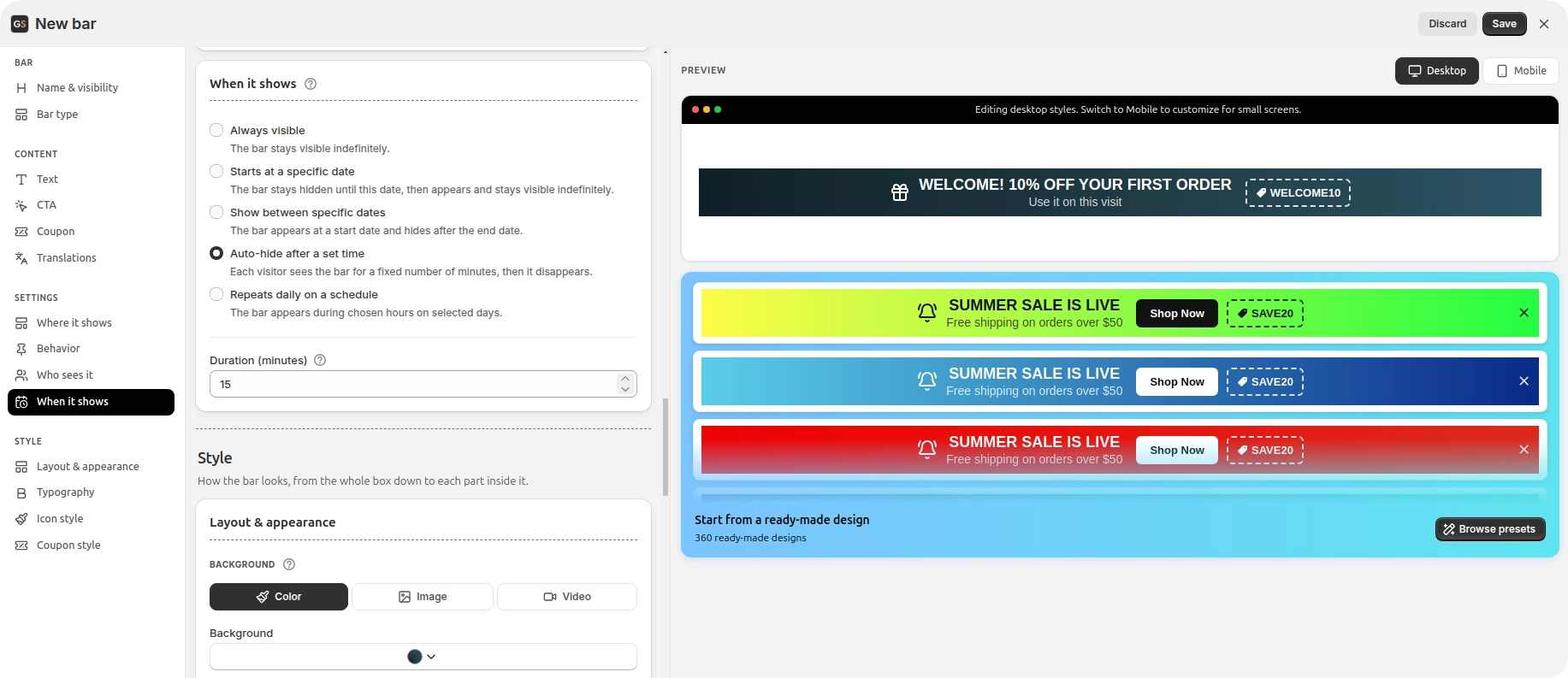 Each visitor gets 15 minutes with the welcome offer, starting from the first time they see it.
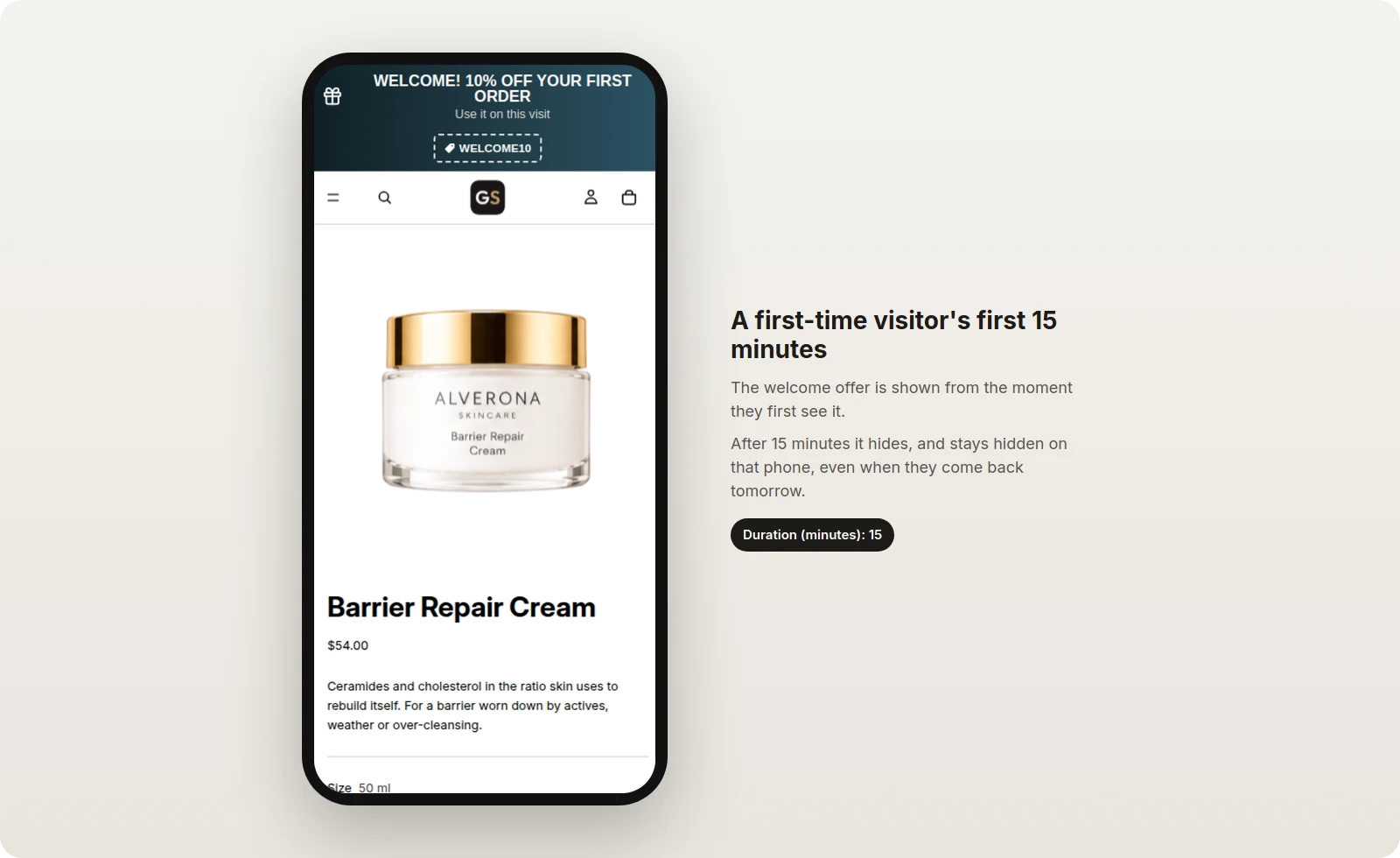 What a first-time visitor sees on their phone, for their first 15 minutes.
Two honest caveats, because this mode depends on the shopper's browser:
It's remembered per browser, not per person. The app keeps track of each visitor's 15 minutes in their browser. If they come back on a different device, or in a private window, or after clearing their browser data, they'll see the bar again. That's fine for a nudge. Don't use this mode for anything that must only ever be shown once.
Saving the bar starts everyone's clock again. When you edit and save an auto-hide bar, the app treats it as a new bar, so every visitor gets a fresh set of minutes, including people whose time had run out. Make your edits before you go live, or expect returning visitors to see it once more.
Repeats daily on a schedule
Pick the days of the week and a window of time. The bar appears at the start time on each of those days and disappears at the end time. Next week, it does it all again.
Example: a happy hour, 20% off with the code HAPPY20, every weekday from 6 PM to 9 PM.
Choose Repeats daily on a schedule.
Under Show on these days, switch on Monday to Friday, and leave Saturday and Sunday off.
Set the Start time to 6:00 PM and the End time to 9:00 PM.
Check the bar is Live, and save.
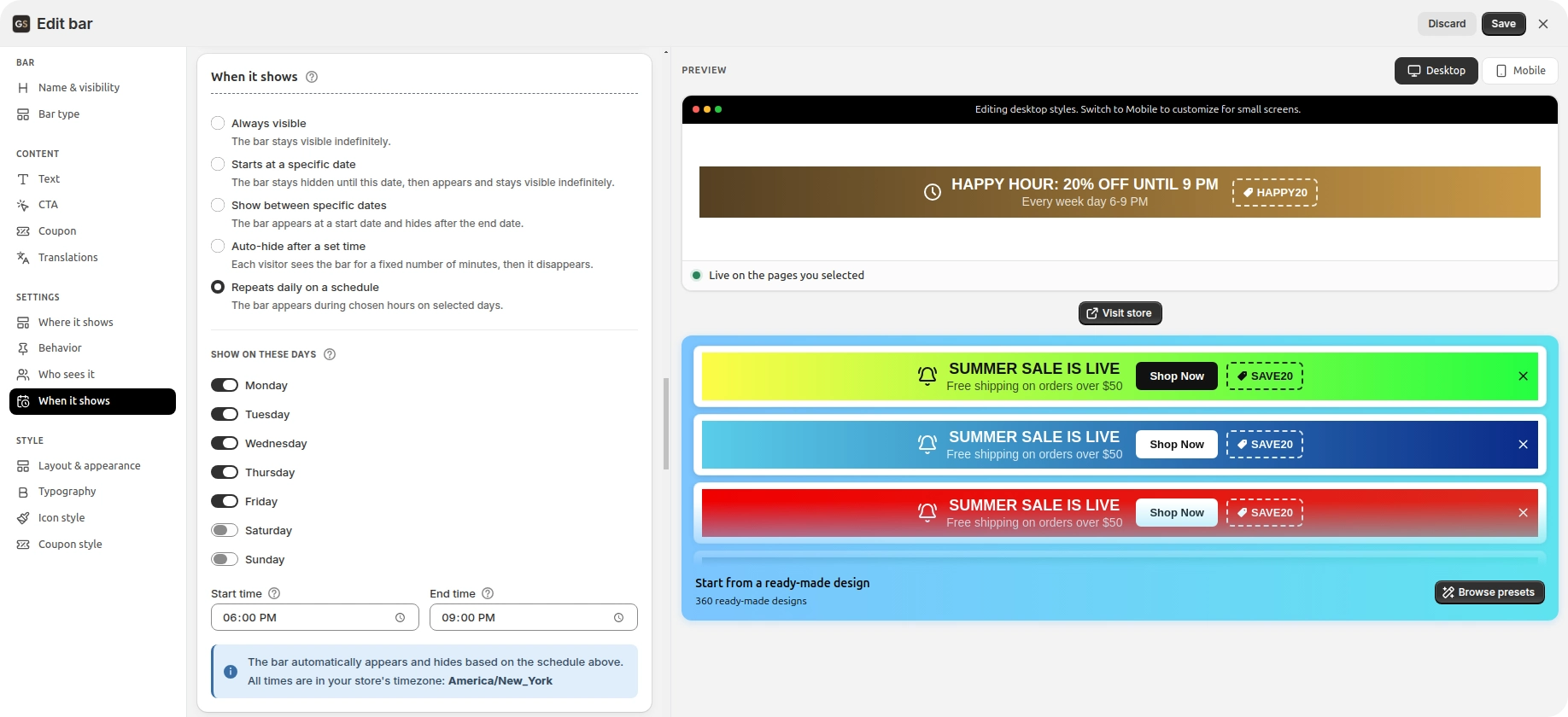 The happy hour bar: weekdays only, 6 PM to 9 PM, every week, until you turn it off.
At 5:59 PM on a Tuesday your store looks normal. At 6:00 PM the bar is there. At 9:00 PM it's gone, for everyone, including whoever happens to be on the page. You didn't do anything.
This mode is good for anything with a daily rhythm:
A daily deadline that's real. "Order by 2 PM for same-day dispatch", shown on weekdays from 8 AM to 2 PM. At 2 PM it disappears, which is exactly when it stops being true.
Weekend-only messages. "Orders placed at the weekend ship on Monday", shown Saturday and Sunday all day.
Customer service hours. "Live chat is open now", during the hours someone is actually there to answer it.
You need at least one day switched on, and the start time has to be before the end time; the editor tells you if either isn't the case. That also means one bar can't run across midnight, say 10 PM to 2 AM. If you need that, use two bars: one from 10:00 PM to 11:59 PM on the evening days, and one from 12:00 AM to 2:00 AM on the following mornings.
As with dates, a code advertised in a daily bar keeps working outside the window unless you limit it in Shopify. Shopify can give a discount one start and one end, but not daily hours. So for a happy hour, the honest version is this: the offer is what the bar shows, the bar only shows during happy hour, and anyone who saves the code and uses it at 10 PM is a customer you're happy to have anyway.
Time zones: your Shopify store's clock decides
Every date and time in When it shows is in your store's timezone, and the app prints it under the fields ("All times are in your store's timezone: America/New_York", for example).
That's almost always what you want. Your discount codes, your order times and your shipping cut-offs all run on your store's clock, so your bar should too. Just remember it when you're working from somewhere else: "6 PM" in the editor is 6 PM where your store is, not where you are. If your store runs on New York time and you're in London, a bar set to start at 6 PM usually appears at 11 PM on your own clock.
The timezone is your store's setting in Shopify (Settings → General). If you ever change it, open each scheduled bar and save it again, so it picks up the new timezone.
Combine the schedule with who sees it on your Shopify store
When it shows decides the hours. Who sees it, in the same Settings block, decides the audience. They work together.
A weekend sale on knitwear, shown only on products in your Knitwear collection.
A happy hour shown on every page, but only to shoppers in one Shopify Market (only US shoppers, say, if the happy hour is 6 PM New York time).
A launch bar shown only on the home page and the new collection, via Specific pages.
A bar appears only when both are true: it's the right time, and it's the right page and shopper.
Chain bars for a Shopify sale campaign
The most useful thing about scheduling is that bars can hand over to each other. A campaign with stages becomes a row of bars, each with Show between specific dates, each ending the night before the next one starts:
A teaser bar before the sale ("Starts Friday").
The sale bar during it.
A "last day" bar on the final day.
A shipping cut-off bar after it.
You build them all at once, and they take turns on their own.
If two scheduled bars do overlap, both show. Their order on the All Bars page (drag to reorder) is the order they stack in on your store.
How to test the schedule on your live Shopify store
Because the editor's preview always shows the bar, the place to test a schedule is your real Shopify store.
Make a test bar with Show between specific dates, starting a few minutes from now (in your store's timezone) and ending a few minutes after that.
Set it to Live, save, and click View on storefront.
Before the start time, the bar isn't there. At the start time it appears, without reloading. At the end time it goes.
Delete the test bar.
Five minutes, and you'll trust the real schedule.
Common Shopify announcement bar scheduling mistakes
The bar is still a draft. The schedule can't show a draft. Check Live on your storefront.
Testing in the preview. The preview ignores the schedule. Check on the store.
Wrong time zone. You set 6 PM thinking of your own clock, and the store runs on another. Read the timezone printed under the fields.
The code outlives the bar. The bar hides, the discount keeps working. Give the code the same dates in Shopify's Discounts.
Overlapping campaign bars. Two bars on the same night stack on top of each other. End each one at 11:59 PM the night before the next.
Editing an auto-hide bar after launch. Every save gives every visitor a fresh countdown.
FAQ: scheduling a Shopify announcement bar
Does the bar need my computer to be on to switch at the right time?
No. The schedule is saved with the bar and checked in each shopper's browser when they visit. Your laptop can be closed.
What happens after an end date passes?
The bar stops showing, for good. It stays in your All Bars list, so you can change the dates and use it again next time.
Can I see the bar on my store before it starts?
In the editor, yes: the preview always shows it. On the live store, no. To check it on the store, test with a short window as described above.
Can one bar have several date ranges, like every weekend in December?
Not as dates. For a weekly pattern, use Repeats daily on a schedule with Saturday and Sunday switched on. For separate one-off periods, make a bar for each (the Duplicate action on the All Bars page makes that quick; a duplicate starts as a draft, so remember to switch it to Live).
Can the bar show a ticking countdown?
The bar states the deadline in words, like "Ends Sunday 11:59 PM", and removes itself when the deadline passes. For ticking digits, pair it with a countdown timer app such as GoodySell Countdown Timer.
Set it once, then stop watching the clock
A scheduled bar is a promise kept automatically. It appears when the offer starts, says exactly what's true, and disappears the moment that stops being true, at midnight or at 6 PM or after a new visitor's first 15 minutes, without you.
Install GoodySell Announcement Bar on your Shopify store, open the bar you change most often by hand, and give it a schedule. That's one less thing to remember this week, and every week after.