How to Generate AI Alt Text for Shopify Images: Complete Guide
Learn how to automatically generate SEO-optimized alt text for all your Shopify product images using AI. This step-by-step guide shows you how to improve your store's search visibility and accessibility in minutes.
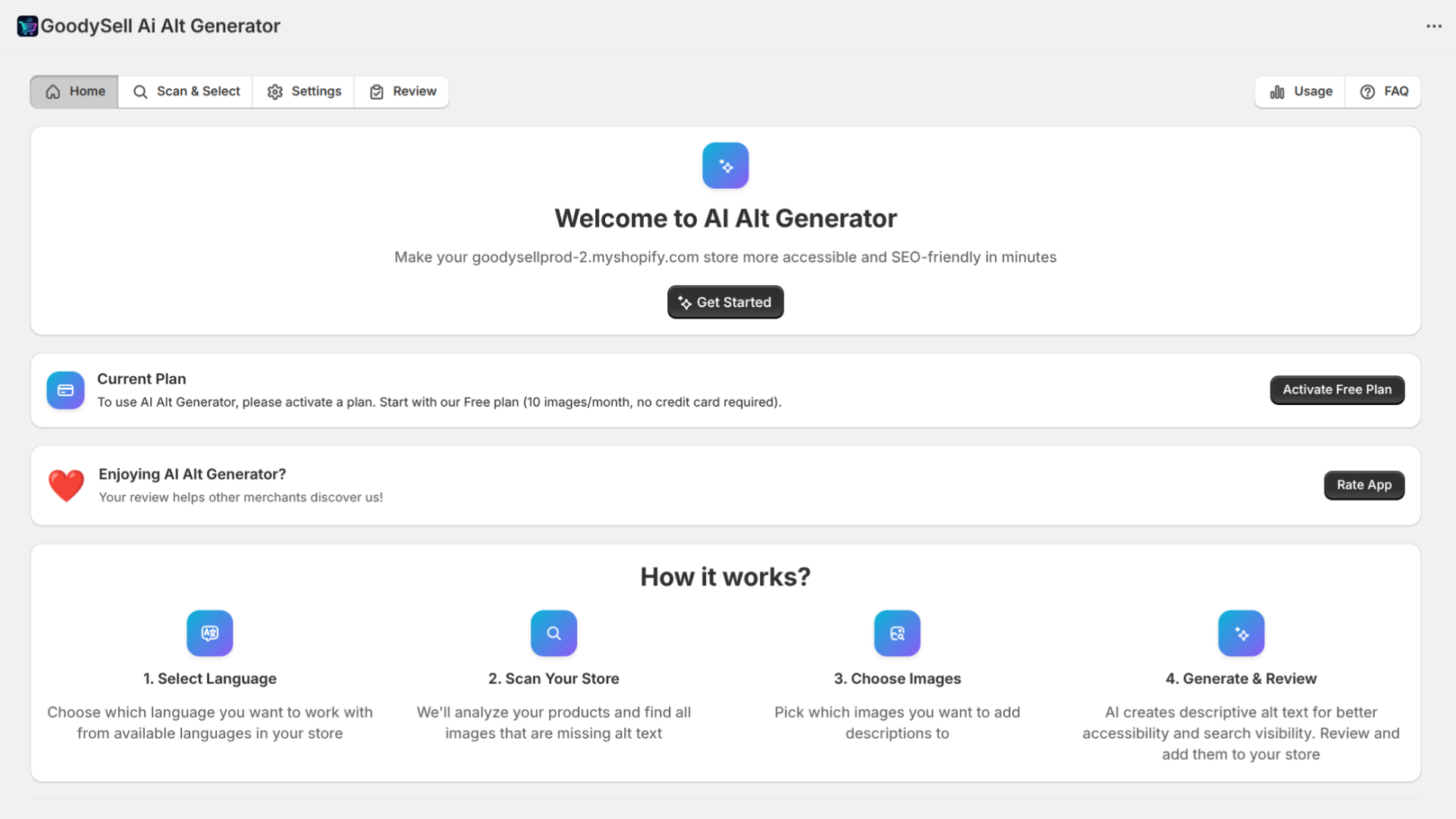
If you've been running a Shopify store for a while, you've probably heard that alt text matters for SEO. But let's be honest — writing unique, descriptive alt text for hundreds (or thousands) of product images is tedious work that most store owners skip or rush through.
That's exactly why we built the AI Alt Generator app. It uses artificial intelligence to analyze your product images and automatically generate descriptive, SEO-optimized alt text in seconds. In this guide, I'll walk you through exactly how to use it.
What Is Alt Text and Why Does It Matter?
Alt text (alternative text) is a written description of an image. It serves two critical purposes:
SEO Benefits: Search engines can't "see" images the way humans do. Alt text tells Google what your product images show, helping them appear in Google Images search results. This is free traffic you're probably missing out on.
Accessibility: Screen readers use alt text to describe images to visually impaired shoppers. Good alt text makes your store accessible to everyone—and in some regions, it's a legal requirement.
The problem? Writing good alt text takes time. For a store with 500 products and 3 images each, that's 1,500 descriptions you need to write. Most store owners either leave alt text blank or write something generic like "product image" which doesn't help anyone.
Getting Started with AI Alt Generator
First, you'll need to install the app from the Shopify App Store. Search for "GoodySell AI Alt Generator" or visit the app listing directly. Click Add app and authorize the required permissions.
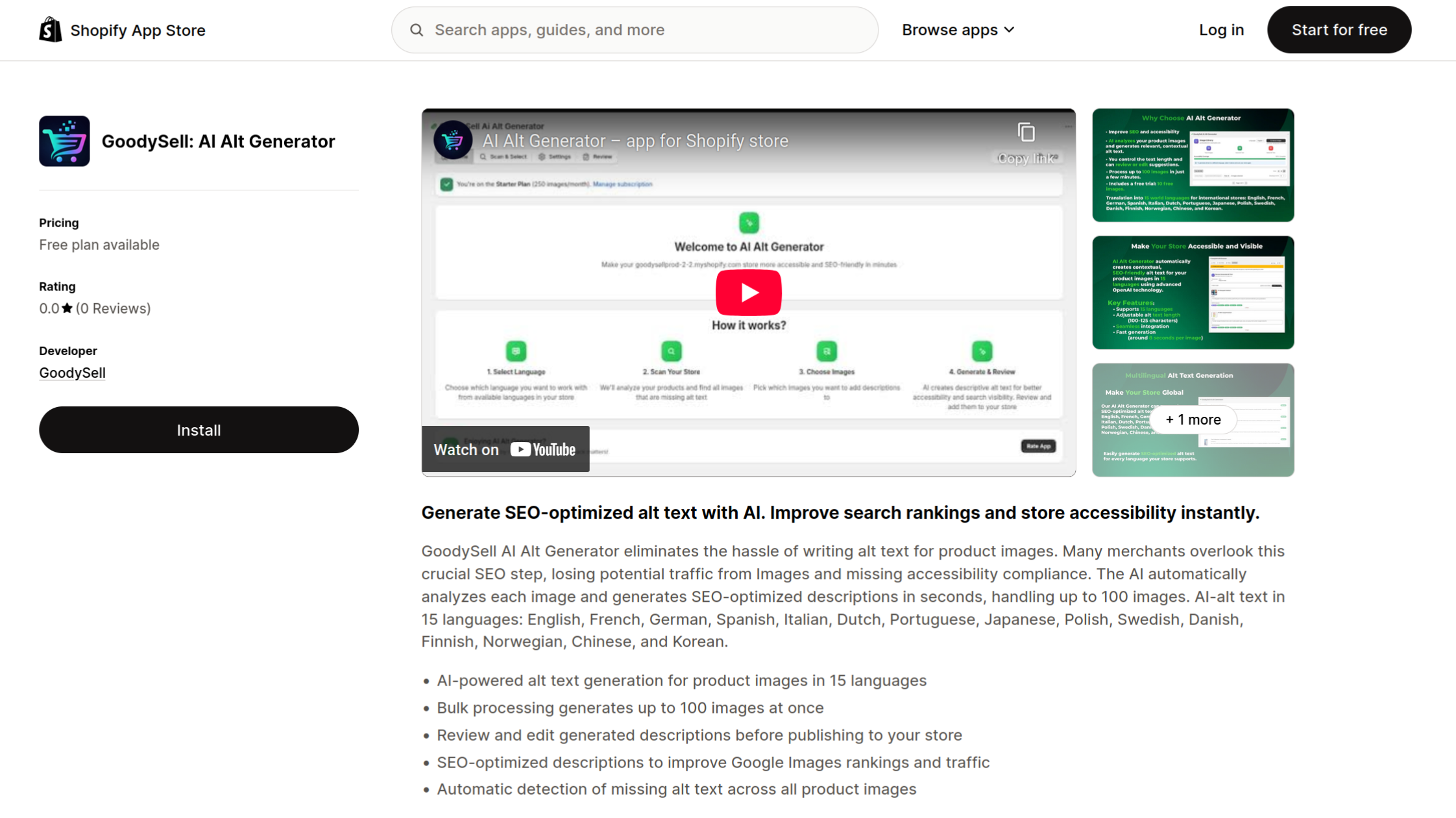
Once installed, you'll see the app in your Shopify admin under Apps. Click on it to open the dashboard.
Choosing a Plan
The app offers several plans to fit different store sizes:
Plan | Monthly Price | Images per Month |
|---|---|---|
Free | $0 | 10 images |
Starter | $0.99 | 250 images |
Professional | $25.99 | 1,000 images |
Business | $55.99 | 2,500 images |
I recommend starting with the Free plan to test the quality on 10 images. Once you see the results, you can upgrade to process your entire catalog. Annual plans are also available at a discount if you prefer to save some money.
Step 1: Scan Your Store
Head to the Scan & Select tab. This is where you'll discover which product images need alt text.
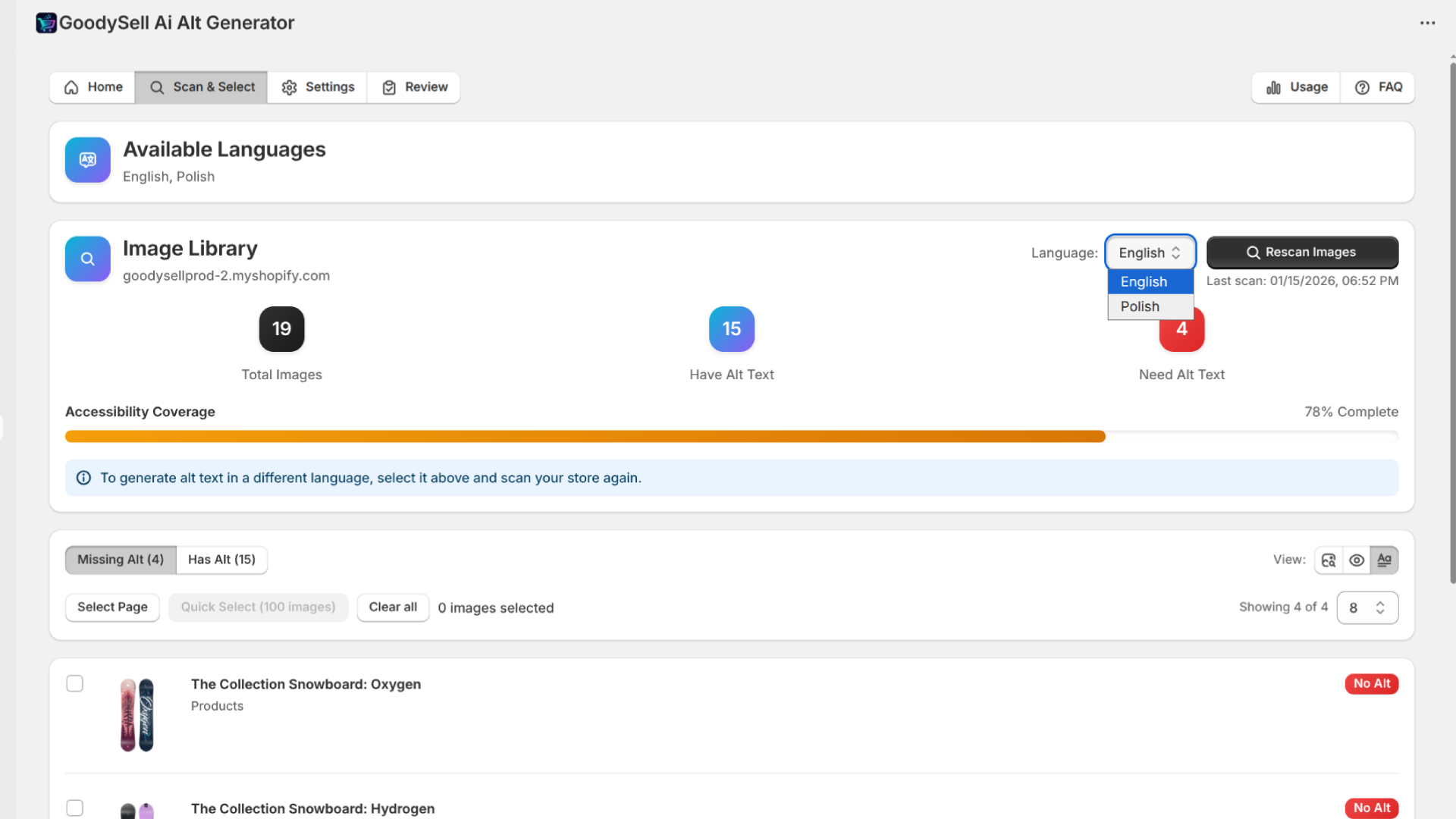
Before scanning, select your target language from the dropdown. The app supports 14+ languages including English, Spanish, French, German, Japanese, and more. If your store serves multiple markets, you can generate alt text in each language separately.
Click the Scan Store button. The app will analyze your entire product catalog and show you:
Total number of product images
Images that already have alt text
Images missing alt text
You can filter the results to show only images missing alt text — these are the ones you'll want to focus on first.
Step 2: Select Images to Process
Now comes the fun part. Browse through your scanned images and select the ones you want to generate alt text for.
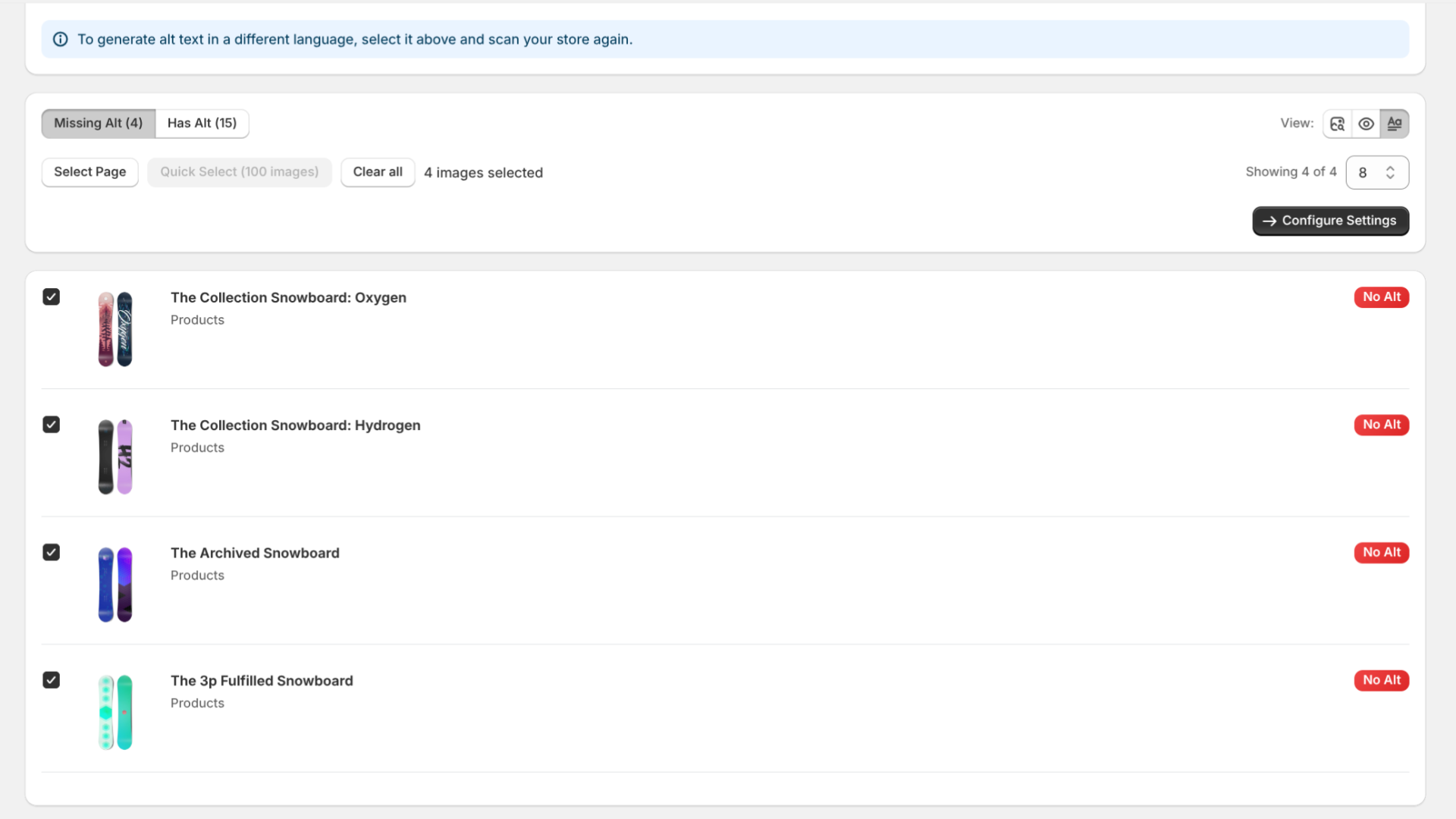
You have a few options here:
Click individual images to select them one by one
Select All on Page to grab everything visible
Select All Results to select up to 100 images at once
The app processes images in batches of up to 100. If you have more than that, you'll run multiple batches — no big deal, just repeat the process.
Pro tip: Start with your best-selling products. These are the images most likely to show up in search results, so optimizing them first gives you the biggest SEO boost.
Step 3: Configure Generation Settings
Click the Configure Settings button to customize how your alt text will be generated.
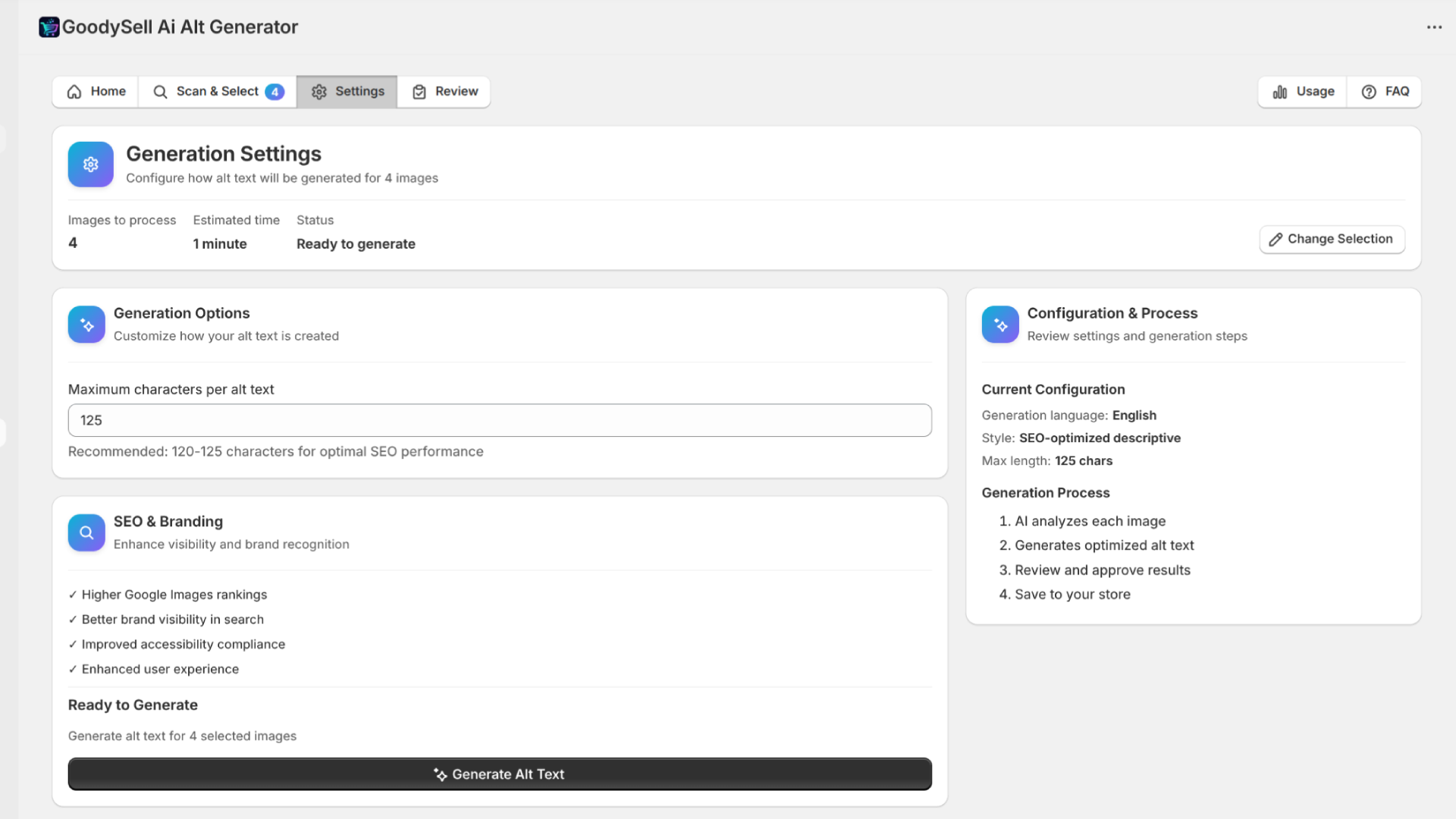
The main setting you can adjust is the maximum character length. The default is 125 characters, which is the sweet spot for SEO — long enough to be descriptive, short enough to not get truncated in search results.
You can lower this to 100 characters if you prefer shorter descriptions, but I recommend sticking with 120-125 for optimal results.
The settings page also shows you:
Number of images selected
Estimated processing time
Selected language
When you're ready, click Generate Alt Text.
Step 4: Watch the Magic Happen
After clicking generate, you'll see a progress screen showing the AI at work.
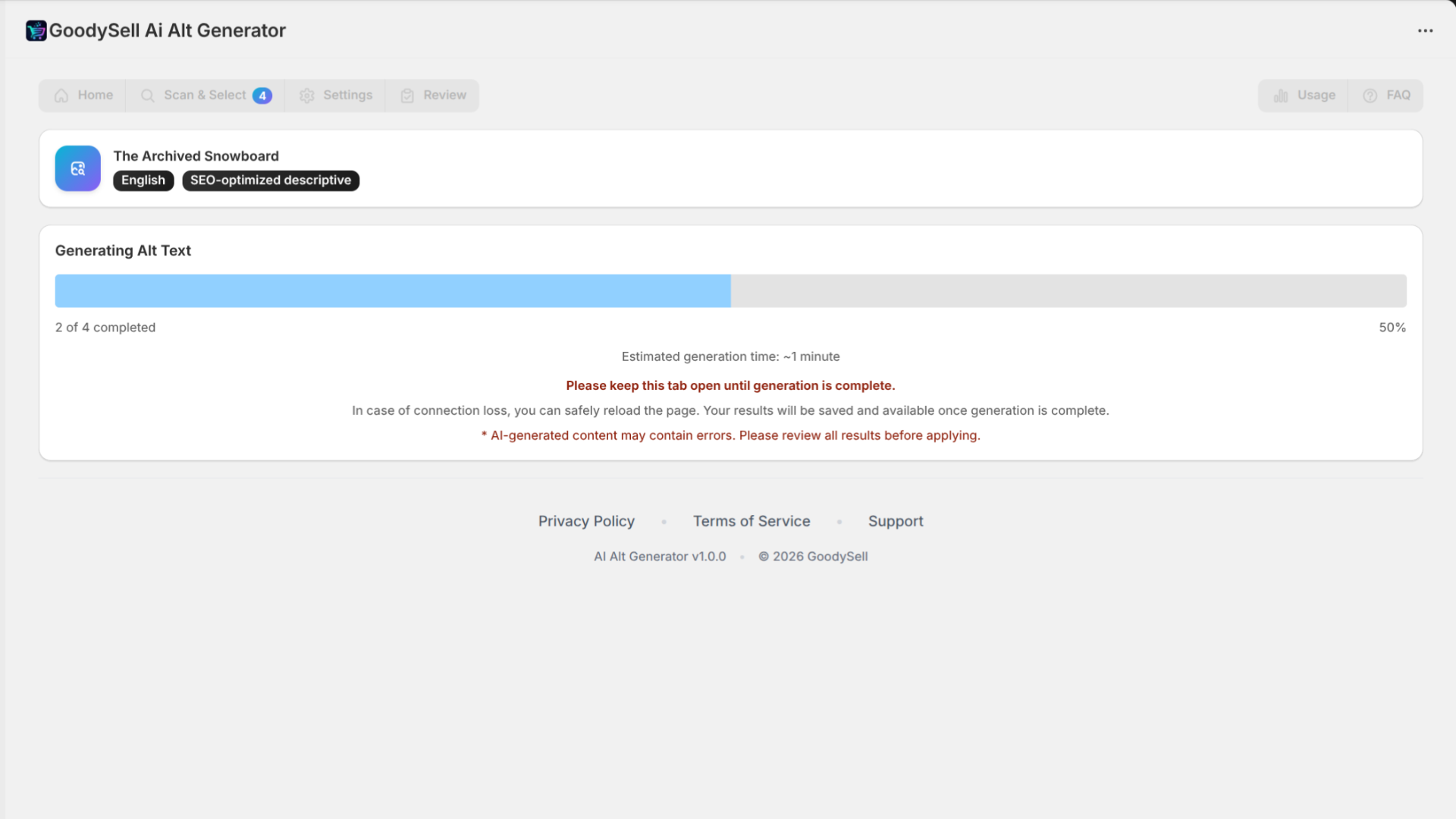
The AI analyzes each image individually, looking at:
Colors and materials visible in the image
The product name and brand
Visual details that shoppers would find useful
Processing speed is roughly 6 seconds per image. So if you selected 50 images, expect about 5 minutes of processing time. A batch of 100 images takes around 10 minutes.
Important: Keep the browser tab open during generation. If you accidentally close it, don't panic — your progress is saved, and you can reload the page to see your results.
Step 5: Review and Edit Results
Once generation is complete, you'll automatically land on the Review tab. This is where you can see all the generated alt text before applying it to your store.
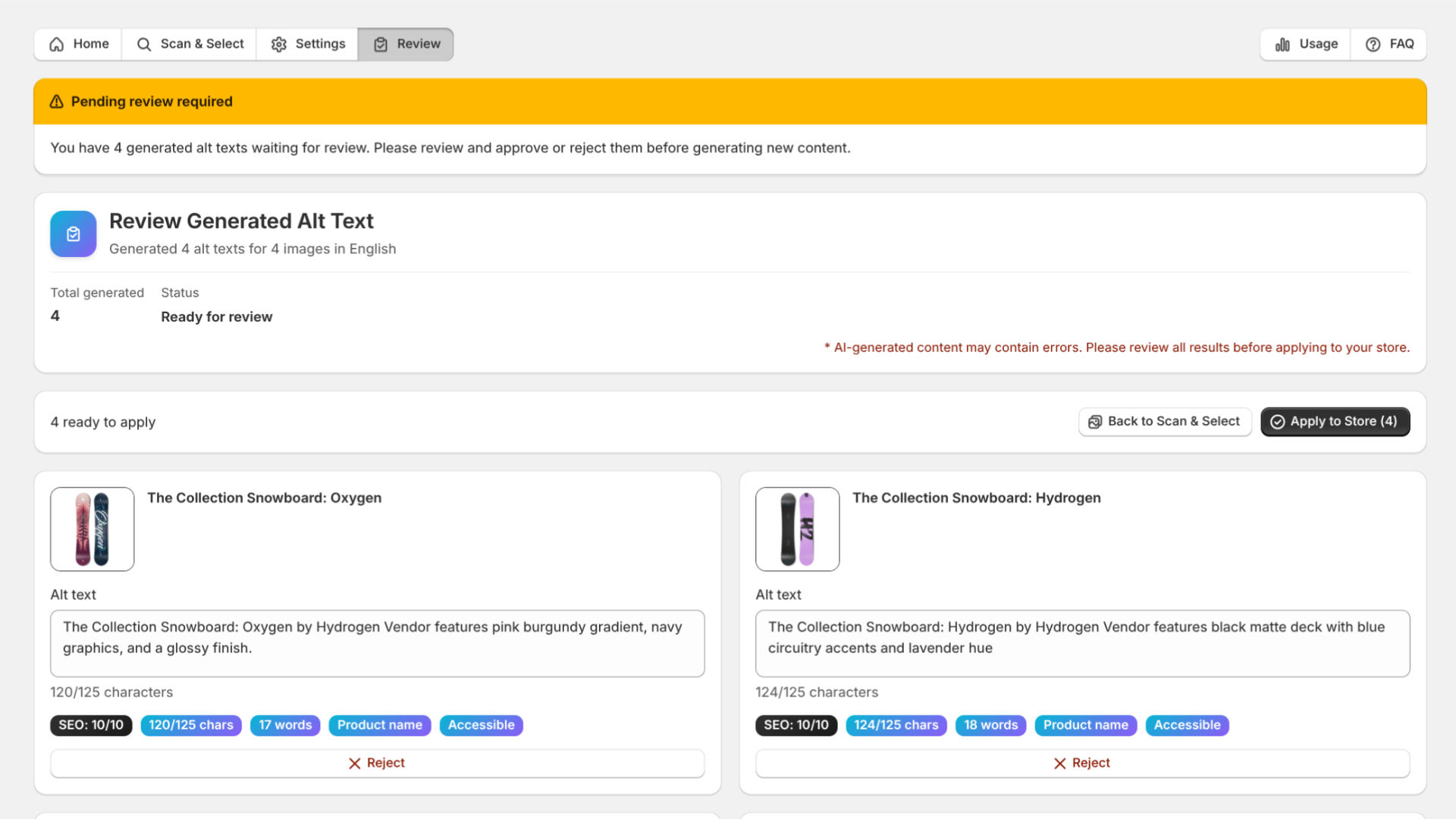
Each result card shows:
The product image thumbnail
The generated alt text (editable)
Character count
Take a moment to scan through the results. The AI does a great job in most cases, but you might want to tweak a few descriptions. Simply click on any alt text field to edit it directly.
If you see a result you don't like at all, click the Reject button to exclude it. Rejected items won't be applied to your store.
What Good AI Alt Text Looks Like
Here's an example of what the AI generates:
Before: (empty or "product image")
After: "The Collection Snowboard: Hydrogen by Hydrogen Vendor features black matte deck with blue circuitry accents and lavender hue"
Notice how it includes the color, material, style details, and who it's for. This is exactly what search engines and screen readers need.
Step 6: Apply to Your Store
Happy with the results? Click the Apply to Store button at the top of the Review page.
The app will save all approved alt text directly to your Shopify products. You'll see a confirmation message once everything is saved.
That's it! Your product images now have professional, SEO-optimized alt text. Head to any product in your Shopify admin to verify — you'll see the new alt text in the image details.
Tips for Best Results
After helping thousands of merchants optimize their stores, here are some tips to get the most out of AI Alt Generator:
Use high-quality images. The AI analyzes what it sees in the image. Blurry or poorly lit photos lead to less accurate descriptions.
Process by language. If you sell internationally, run separate generations for each language. The AI writes native-quality text in all supported languages.
Review before applying. While AI is accurate most of the time, a quick review catches the occasional oddity.
Don't forget variant images. Different colors and styles of the same product need their own alt text too.
Run monthly. As you add new products, come back to scan and generate alt text for new images.
Checking Your Usage
You can track how many images you've processed this month in the Usage tab.
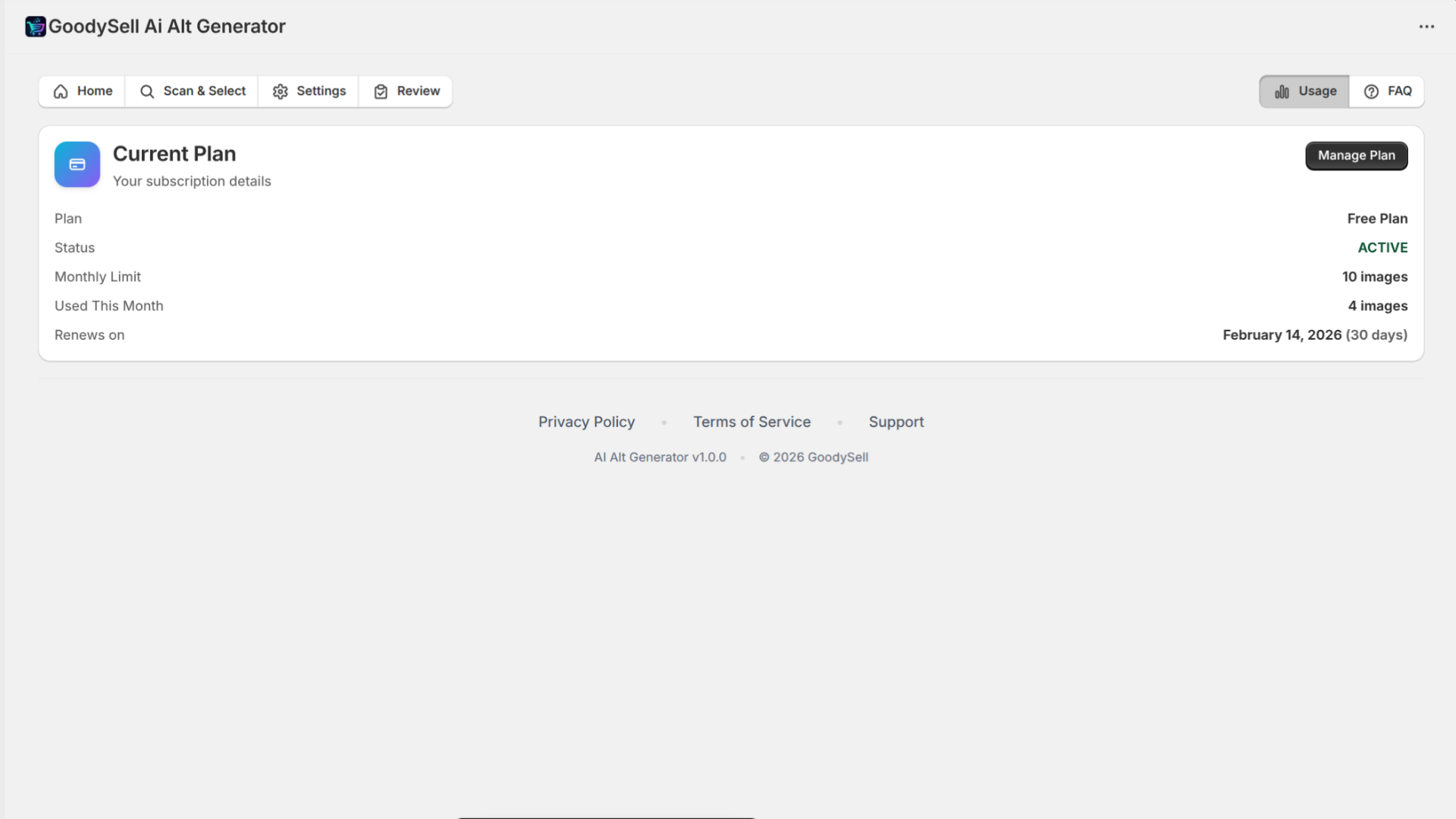
This shows your current plan, how many images you've used, and when your monthly limit resets. If you're approaching your limit, you can upgrade your plan with one click.
Wrapping Up
Writing alt text used to be one of those tasks that everyone knows they should do but nobody has time for. With AI Alt Generator, you can optimize hundreds of images in the time it would take to manually write descriptions for five.
Better alt text means better search visibility, better accessibility, and ultimately more customers finding your products. It's one of the easiest SEO wins you can get for your Shopify store.
Ready to try it? Install AI Alt Generator from the Shopify App Store and start with the free plan. Your future search traffic will thank you.
Have Questions?
Find answers to common questions and learn how to get the most out of our apps.